Invoices & statements
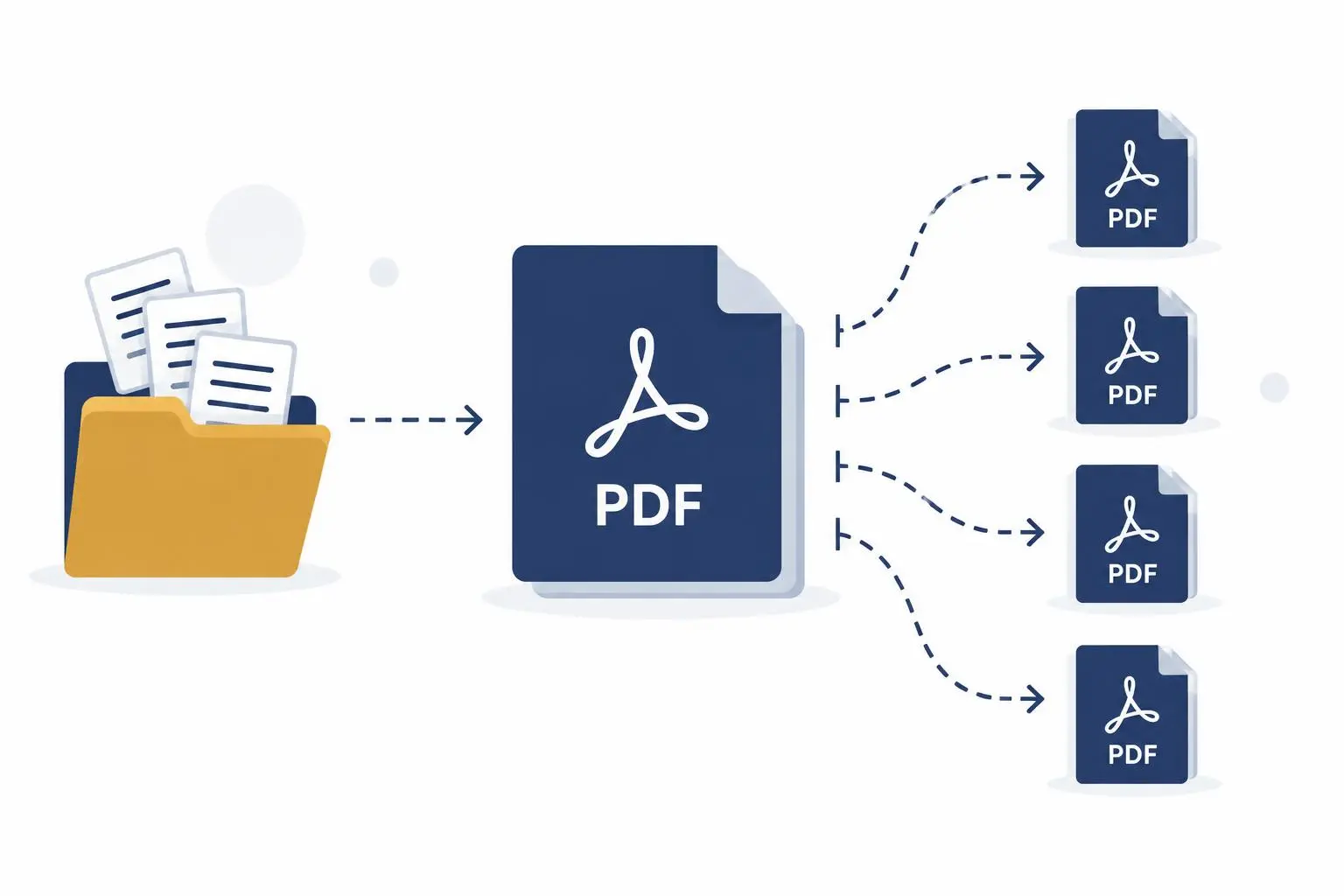
One giant export from your billing system automatically split one PDF per customer — named by invoice number and client, ready to email.


AutoSplit is an Adobe® Acrobat® plug-in that splits PDFs by bookmarks, page ranges, text or pattern, or blank pages; extracts and deletes pages; merges PDF, Office, and image files; removes duplicate pages; and auto-renames files using text content. Trusted since 2004 by companies of all sizes and U.S. federal agencies.
Trusted by 50,000+ professionals at:
PDF Automation
Days of work, done in minutes.
Split PDFs by bookmarks, page count, page ranges, orientation, keywords, blank pages, or text patterns. Break PDFs at each new invoice number, customer name, or account. Name output files using any combination of page text, bookmarks, and metadata. Process one PDF or a whole folder in a batch.
Combine PDFs, Office files, and images into PDFs, with bookmarks and a table of contents built automatically. Merge each folder into its own PDF, or group files with similar filenames. Run complex merges with a control file or a spreadsheet list. Update hundreds of PDFs at once by inserting or replacing pages.
Pull pages containing keywords, names, or account numbers into a new PDF. Extract bookmarked sections, or pages with comments, stamps, or form fields. Remove PDF pages by keyword or text pattern, or replace them with new ones.
Delete blank pages from regular and scanned PDFs. Find and remove duplicate and near-duplicate pages. Check thousands of pages in seconds.
Build filenames from any combination of page text, metadata, page labels, Bates numbers, and custom text. Rename files with a lookup table, turning a client ID into the client's name. Review and approve every name before files are renamed.
Batch-process PDFs with AutoSplit tools in Acrobat's Guided Actions. Run jobs from command-line BAT, PowerShell, or Python scripts. Hand off repetitive tasks and let them run on schedule. Requires Pro version.
Use cases
One giant export from your billing system automatically split one PDF per customer — named by invoice number and client, ready to email.
Split a day's worth of scans at separator pages or blank pages, and delete the blanks and duplicates while you're at it.
Split a single W-2 or 1099 composite PDF file per employee, extract bookmarked sections, and archive with consistent file names.
Extract pages that match a pattern — an account number, a case number — and produce clean, labeled evidence files.
Combine ACORD forms, declarations pages, policy forms, with matching names from multiple folders into unified document packets.
Rename client invoice PDFs using extracted vendor, date, invoice number, and amount.
Merge pleadings, exhibits, and supporting documents into one packet in the right order, with bookmarks and a table of contents generated for you.
Drop files into a folder and walk away: converted to PDF, renamed by content, optimized, and watermarked automatically.
Remove duplicate pages from litigation files before attorney review or court filing, and remove superseded or duplicate pages from audit working papers before final engagement file assembly.
Security
All files are processed on your computer — no cloud, no servers.
Runs in a fully disconnected environment with zero network access.
No AI analysis of your documents, and nothing is used to train models.
Getting Started
One short demo, then step-by-step tutorials for every workflow.
Have a question or need assistance? Email us at [email protected].
Customers
"Splitting large PDF files and auto-renaming them has literally saved us 3–4 days per quarter. No more tedious saving and renaming files. The software does it for us, in minutes."
"I tried many products and none of them do what AutoSplit Pro does, and it works so flawlessly it's really amazing. Auto-split on matching text is the best thing since sliced bread."
"I was tasked with archiving over ten years' worth of financial reports — hundreds of thousands of composite PDFs. AutoSplit Pro did the job, and the improvements I suggested shipped within weeks."
"We have been using Evermap's PDF AutoSplit plugin to split one large PDF into smaller ones based on specific text appearing on a page, and extracting text from a set location on that page to use as the filename. It is ridiculously successful and most definitely top of it's game.
«I absolutely love this product [AutoSplit], it's exactly what we needed and is making a whole project possible!»
"I can't say enough about your products and more importantly your support. Honestly you have never disappointed me and you continue to add feature requests that are available within weeks of my request. EverMap has been the best money I have ever spent as a developer."
Editions & pricing
Perpetual licenses, free updates for two years, and no subscription. Fully featured 30-day trial available.
AutoSplit Pro includes every feature of AutoSplit Standard, plus batch processing with Acrobat's Guided Actions (formerly Action Wizard), command-line automation from BAT files and PowerShell, and split-by-separator methods. These methods split a PDF where text at a specific location changes, where text matches a pattern, at blank pages, where page orientation or size changes, at pages with specific keywords, and at pages with stamps.
| Functionality | AutoSplit Standard | AutoSplit Pro |
|---|---|---|
|
Split PDF documents by page count All output PDF files will have the same number of pages. Name files using text from page and many other available options. |
YES | YES |
|
Split PDF documents by bookmarks Output PDFs are created with pages related to each bookmark at user-specified nesting levels and named using bookmark text and/or many other flexible options such as text from page or metadata. |
YES | YES |
|
Split PDF documents into custom page ranges Output PDFs are created for user-specified page ranges defined either directly with page numbers or by searching for specific start/end keywords. |
YES | YES |
|
Extract or delete PDF pages with matching text or pattern Use on pages that contain specific keywords or search patterns such as SSN or account numbers |
YES | YES |
|
Find and delete duplicate or similar PDF pages Pages that look identical or very similar can be automatically detected regardless of their content (text or images). Use this operation to clean up large document collections |
YES | YES |
|
Replace PDF pages by text search Search for a specific keyword or pattern (such as product SKU) and replace all matching PDF pages with new ones without breaking links |
YES | YES |
|
Split PDF pages with different sizes into separate files Use this operation to split landscape / portrait pages or pages with different width/height |
YES | YES |
|
Divide PDF pages into multiple Use this operation to divide large pages into multiple ones. For example, split A2 pages into multiple A4 pages. |
YES | YES |
|
Auto-Rename PDF files in bulk Rename hundreds of PDF files automatically using text extracted from each file — invoice numbers, customer names, dates, account IDs, Bates numbers. Ideal for accounting, legal, and admin teams processing large batches of invoices, contracts, or statements. |
YES | YES |
|
Merge PDF and Office documents Combine documents into one or more PDF files using variety of methods: filename similarity, location, content or use control files for precise control. Auto-generate table of contents and bookmarks in the output files. |
YES | YES |
|
Split PDF files Based on Content Use split by separator methods to automatically separate large files with variable length sub-documents - such as invoices, statements, reports. Split at pages where invoice or account number changes or at pages with specific text, keywords or pattern. |
NO | YES |
|
Automate with Guided Actions Use most of the operations in Acrobat Pro's Guided Actions tool for processing multiple files without manual work with pre-configured processing workflows. |
NO | YES |
|
Automate with Command-Line Run AutoSplit from a command-line BAT file, Powershell or Python script. |
NO | YES |
System Requirements:
FAQ
AutoSplit is a plug-in for Adobe Acrobat that adds tools for splitting, merging, extracting, cleaning up, renaming, and automating PDF documents. It installs into Acrobat and works from Acrobat's Plug-ins menu.
AutoSplit works with Adobe Acrobat X, XI, and DC through 2026, in both 32-bit and 64-bit versions, on Windows 8–11 and Windows Server 2012–2022.
No. AutoSplit runs on Windows only and requires the full version of Adobe Acrobat Standard or Pro. It does not work on macOS or with the free Adobe Acrobat Reader.
AutoSplit can split PDFs by bookmarks, page count, page ranges, blank pages, page size or orientation, keywords, or text patterns. Each section is saved as a separate PDF file.
Yes. When splitting by bookmarks, AutoSplit can create folders on disk that mirror the document's bookmark tree, so output files are organized automatically.
Yes. AutoSplit Pro can split a document at pages that carry stamp annotations, so reviewers can mark the first page of each document with a stamp and split the file in one step.
Yes, as long as the scanned PDF contains searchable text. For image-only scans, run Acrobat's text recognition (OCR) first, then use any text-based splitting, extraction, or naming method.
Yes. AutoSplit Pro can start a new file wherever specific text appears or changes, such as an invoice number, customer name, or account number. This separates large files with variable-length documents like invoices, statements, and reports.
Yes. Output files can be named using any combination of text from the page, bookmarks, document metadata, Bates numbers, custom text, and auto-incrementing numbers.
Yes. You can define an area on the page, such as the corner where an invoice number or Bates number appears, and AutoSplit uses the text found there to name each output file.
Yes. AutoSplit renames PDF files in bulk using text from documents, metadata, page labels, or Bates numbers. A lookup table can turn codes found in documents, such as a client ID, into readable names, and every name can be reviewed before files are renamed.
Yes. AutoSplit combines PDF, Microsoft Office, and image files into one or more PDFs, with bookmarks and a table of contents generated automatically. It can merge each folder into its own PDF, group files with similar filenames, follow a control file or spreadsheet list, and append or interleave pages.
Yes. AutoSplit can interleave the odd-page and even-page scan files and reverse the page order of the even-page file during the merge, producing one document with pages in the correct order.
Yes. AutoSplit transfers bookmarks from the input documents and updates links so they point to the correct pages in the merged document.
Yes. AutoSplit transfers bookmarks from the input document and updates links so they point to the correct pages in the split documents.
Yes. AutoSplit can extract, delete or replace pages containing keywords or text patterns, such as names, account numbers, or SSNs. It can also extract bookmarked sections and pages with comments, stamps, or form fields.
Yes. AutoSplit can extract file attachments from PDF Portfolios and PDF packages, and export metadata for the portfolio items.
Yes. AutoSplit deletes blank pages from regular and scanned PDFs, and finds duplicate and near-duplicate pages, even when they contain only images, checking thousands of pages in seconds.
Yes. AutoSplit can divide large PDF pages into multiple smaller pages, for example splitting an A2 page into A4 pages.
Yes. AutoSplit Pro adds its tools to Acrobat's Guided Actions for batch processing (Acrobat Pro required), and can run from command-line BAT files, PowerShell, or Python scripts for unattended, scheduled jobs.
Yes. Command-line BAT files, PowerShell scripts, or Python scripts can call many AutoSplit operations. Requires AutoSplit Pro.
Yes. AutoSplit exposes many of its operations to Guided Actions. Requires AutoSplit Pro and Acrobat Pro.
Yes. Splitting and merging settings can be saved to a file and loaded again later. Settings files can also be shared with coworkers so everyone uses the same processing setup.
Yes. A watched folder monitors incoming files and automatically renames, converts to PDF, optimizes, or watermarks them as they arrive.
No. All processing happens locally on your computer, and AutoSplit works fully offline. Documents are never uploaded, analyzed by AI, or used to train models.
Pro version adds splitting by separators (pages where text changes), batch processing with Guided Actions, and command-line automation from BAT files and scripts.
AutoSplit is licensed per user with a one-time license fee. Discounted volume licenses are available, including unlimited enterprise-wide site licenses.
Yes. EverMap is SAM-registered and is an approved provider under the NASA SEWP V contract vehicle, so agencies can purchase AutoSplit through standard federal procurement channels.
Yes. A fully featured 30-day trial is available for both Standard and Pro. Pages created with the trial include a DEMO watermark.
Join the teams who turned one enormous PDF into a folder of perfectly named documents — with one click or one watched folder. One-time license, free updates, no subscription.
Windows OS only · Requires full Adobe Acrobat - Standard or Pro