

Working with Large PDFs
Why Is My PDF File So Large?
It's a common surprise: a PDF with only a handful of pages turns out to be huge, while a much longer document is a fraction of the size. People naturally assume file size should scale with page count — more pages, bigger file. In practice, that assumption is often wrong, and it leads to two frustrating situations: wondering why a "simple" document is so bloated, and expecting that splitting a large file into pieces will shrink it. Neither has much to do with page count.
The real reason PDFs get large: fonts
The text you see in a PDF is usually a small part of the total file. What most people don't realize is that PDF files often carry an invisible passenger: a full copy of every font used in the document, embedded directly into the file.
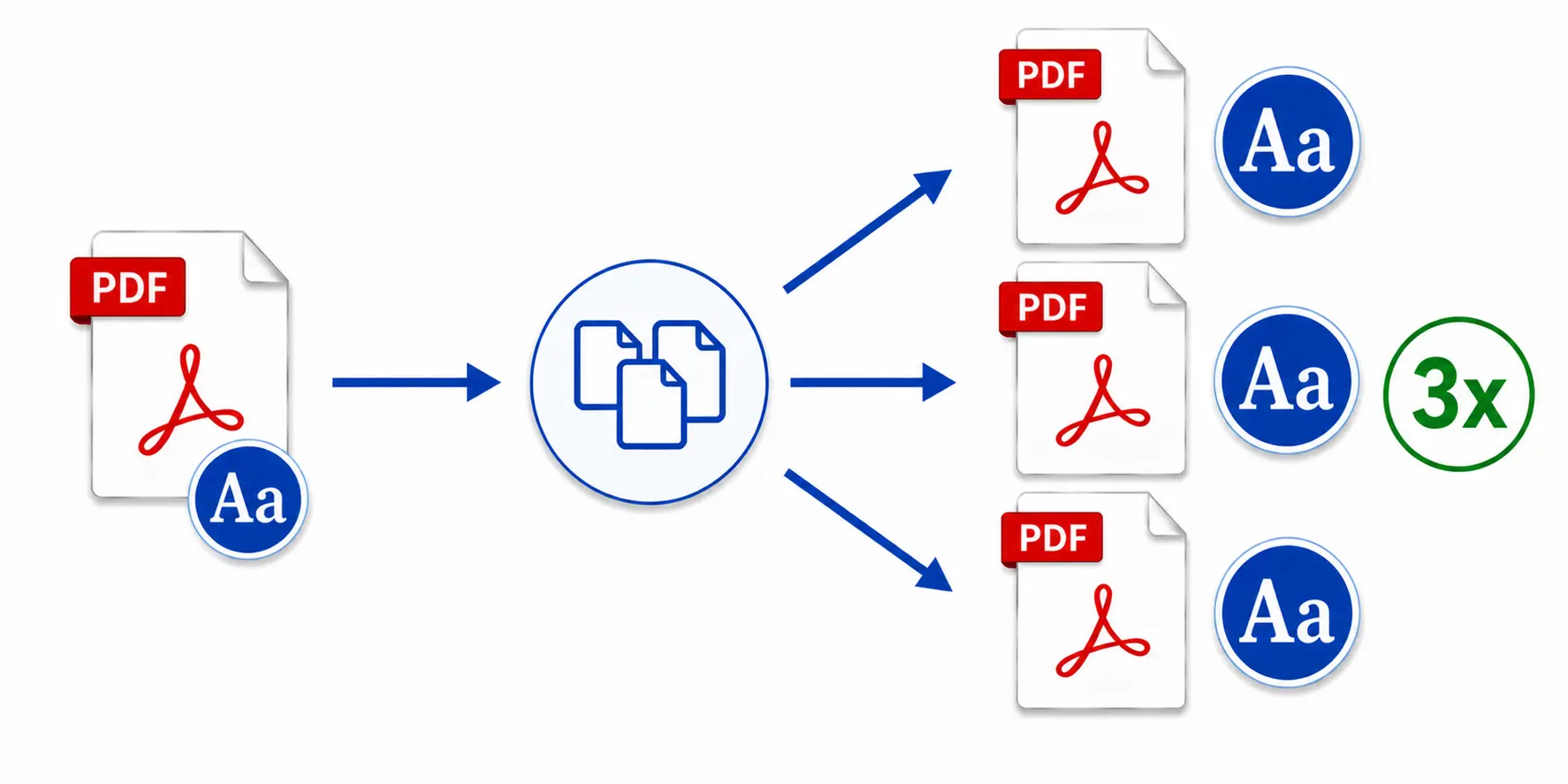
This embedding happens so the document looks correct on any computer, even one that doesn't have that particular font installed. It's a reasonable thing for PDF software to do — but it comes at a real cost. A single embedded font can add several hundred kilobytes to a file. Use two or three different fonts across a document, and that overhead adds up fast, often dwarfing the actual text content.
Images work the same way, adding size based on their resolution and color depth, not on how many pages they appear across.
The upshot: a 5-page document stuffed with fonts and images can easily be larger than a 70-page document that's mostly plain text.
Why splitting a large PDF doesn't shrink it
This is where the assumption really breaks down, and where it causes real problems. A common instinct, when a PDF feels too large, is to split it into several smaller files — the thinking being that smaller files must add up to a smaller total.
If the original PDF has no embedded fonts and is mostly text, that instinct is roughly correct: splitting it does produce proportionally smaller files.
But if the original PDF has embedded fonts — which, as covered above, is very common — splitting it does the opposite of what people expect. Each new file produced by the split generally needs its own copy of those same embedded fonts to display correctly on its own, independent of the other files. The font data doesn't get divided up between the new files; it gets duplicated into each one.
The result: splitting one file into, say, ten pieces doesn't produce ten files that add up to roughly the original size. It can produce ten files that are each nearly as large as the original, because each one is carrying its own full copy of the same fonts. The total size of the resulting collection can end up many times larger than the file you started with.
This is the single most common surprise people run into when splitting large PDFs: the operation they expected to save space ends up consuming dramatically more of it.
What this means in practice
Before splitting a large PDF expecting smaller, more manageable files, it's worth knowing whether that file relies heavily on embedded fonts. If it does, splitting will multiply that font overhead across every output file, and the total space used by the resulting collection can far exceed the original document.
This doesn't mean splitting is a bad idea — there are plenty of good reasons to split a large document into sections (organization, sharing specific parts, workflow needs). It just means "will this save disk space" isn't a safe assumption to make going in.
Turning the Font Problem into an Advantage
There's one situation where understanding this font behavior isn't just about avoiding a mistake — it can actively work in your favor. eDiscovery is a good example. It's common in legal cases to collect hundreds or thousands of emails by exporting each one as its own PDF file, or as a PDF portfolio. Because each of those PDFs was generated independently, each one typically carries its own embedded copy of the very same fonts — the same duplication problem described above, just multiplied across an entire collection. The result is a set of files that, added together, is far larger than it needs to be.
This matters more in legal work than it might elsewhere, because file size directly affects processing speed, and eDiscovery runs on strict deadlines. Smaller files move faster through indexing, review platforms, and production — so unnecessary size isn't just a storage inconvenience, it's a real time cost.
This is where understanding font duplication becomes useful rather than just cautionary. If a large collection of individual PDFs is merged into a single file and the fonts are consolidated in the process — rather than each document keeping its own separate copy — the resulting file can end up significantly smaller than the combined size of all the original files. The duplicated font data that was inflating the collection gets reduced to a single shared copy inside the merged document.
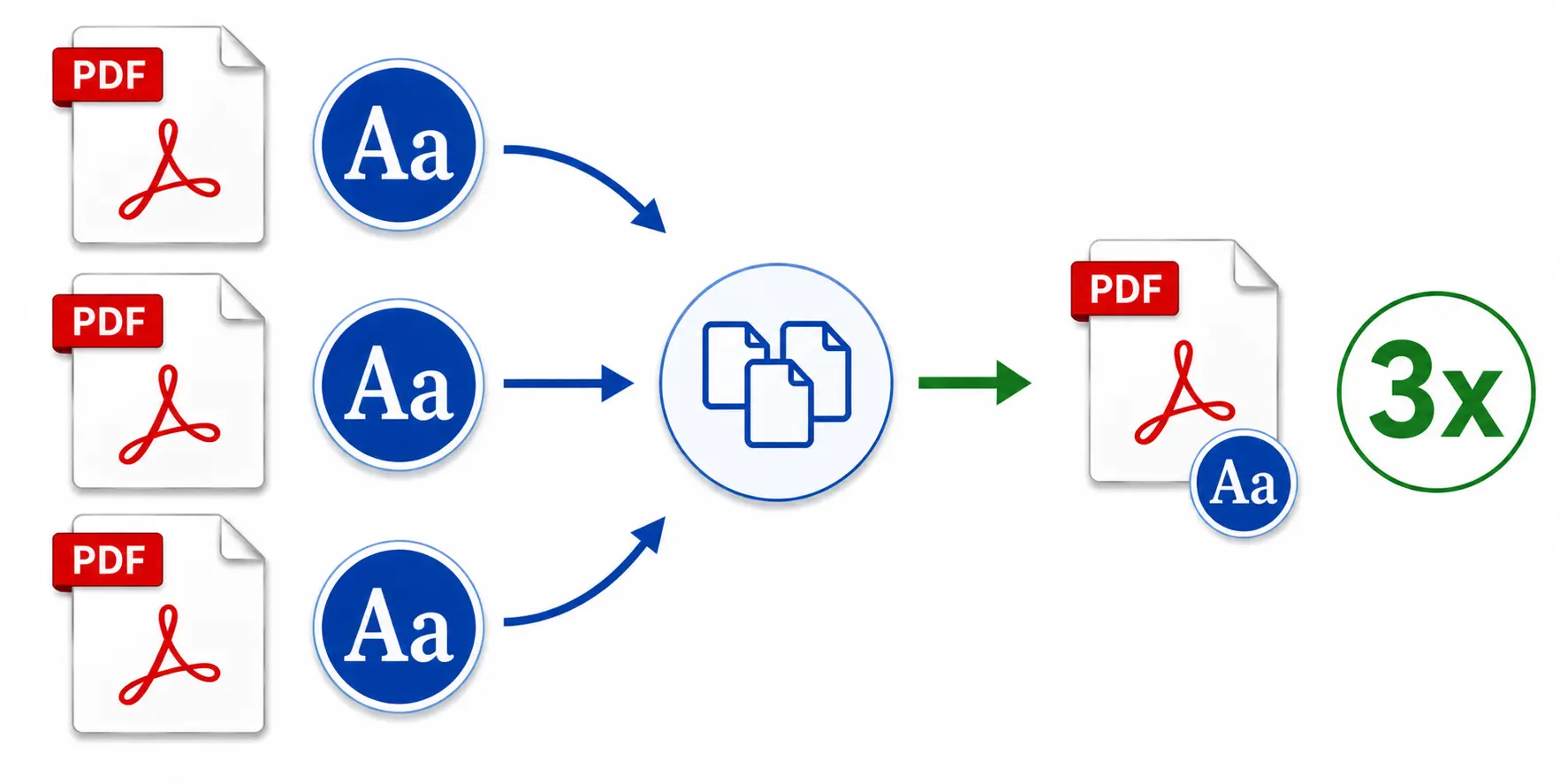
Merging a large volume of files isn't a fast operation in itself, but the payoff is a meaningfully smaller, more efficient document to work with afterward. For this specific scenario — combining a large volume of individual emails into a single PDF — the AutoPortfolio plug-in for Adobe Acrobat is built to handle exactly this kind of consolidation.
How to actually reduce PDF file size
If the goal is genuinely a smaller file, a few things actually help:
- Re-save the file properly. Simply saving changes over and over can cause a PDF to accumulate unnecessary bulk over time. Using a full "Save As" under a new name rebuilds the file from scratch and clears out that accumulated overhead — sometimes shrinking the file with no other changes at all.
- Reduce image resolution or quality. This is usually where the biggest real savings come from, since images are often the largest single contributor to file size. The tradeoff is a visible drop in image quality, so this should be a deliberate choice, not an automatic one.
- Remove or avoid unnecessary embedded fonts. This is possible in some cases, though not always practical depending on how the document needs to display across different systems.
- Combine multiple files into one. If you have a collection of files using identical fonts, then merging them together will reduce overall file size because it will eliminate duplicate embedded fonts.
For a more technical breakdown - including how to inspect exactly where a PDF's size is going, with real file examples - see our companion article - Understanding PDF File Size.