

What is field mapping in mail merge?
The key step in a mail merge is linking each data field (from an Excel file, for example) to its matching PDF form field. Mail merge relies on these links to fill in the PDF forms correctly. This process of connecting data fields to form fields is called field mapping.
The Easiest Approach: Automatic Mapping
The easiest way to establish field mapping is to name data fields and PDF form fields identically. This will save you time and greatly simplify the mail merge setup. If you have control over the naming of either the data fields or the PDF form fields, then this is the way to go. However, if the fields are named differently and you cannot control it, then no problem: in this tutorial we will show you how to assign field mapping for individual fields manually.
In this tutorial, we will first show how to automatically map fields if they are named identically, and then show how to manually set field mapping for any field.
Data File and PDF Form
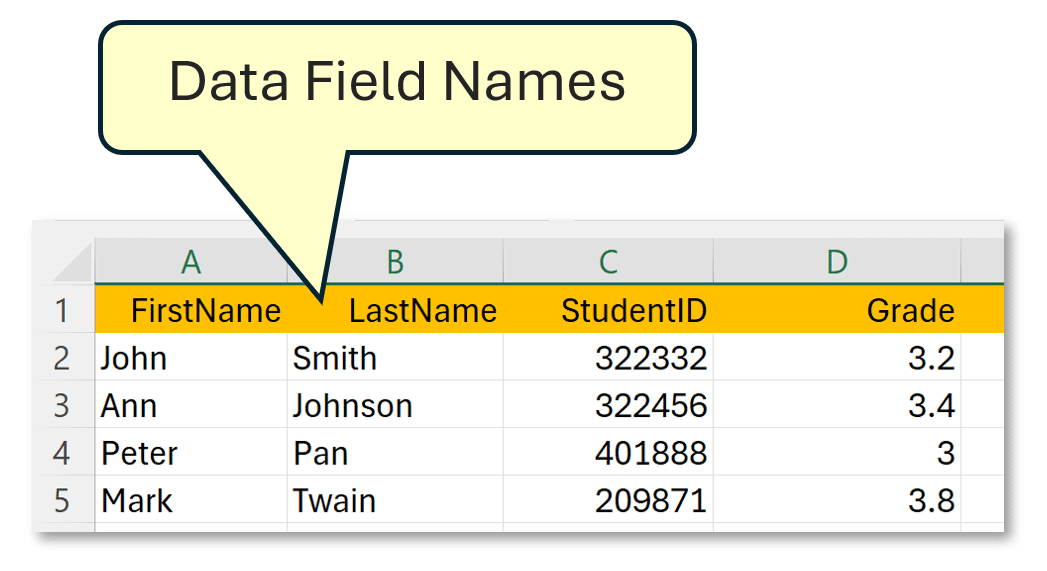
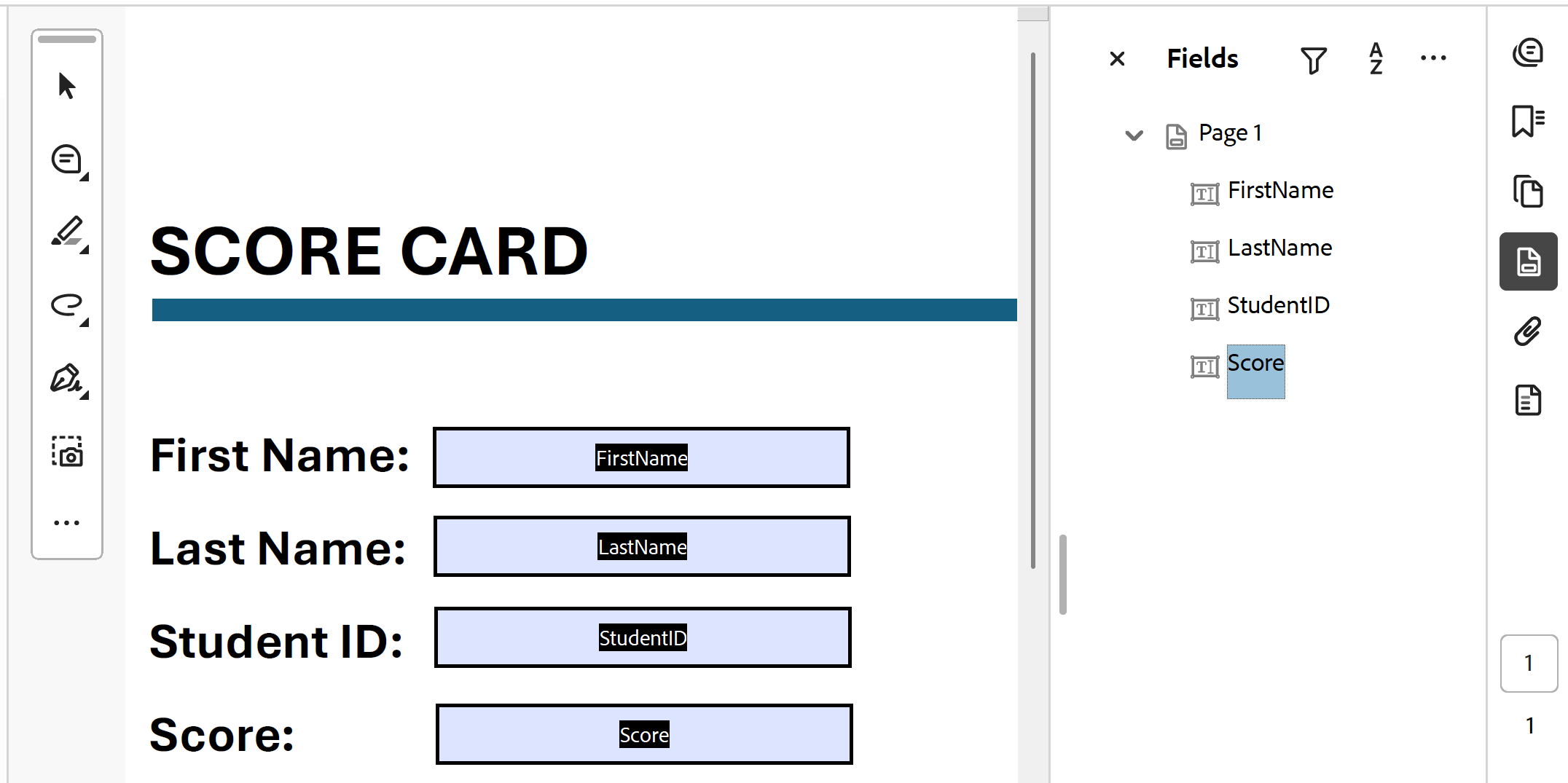
We are going to use the following sample Excel file (with 4 data fields: FirstName, LastName, StudentID, Grade) and a PDF form with 4 fields that need to be filled from this spreadsheet. Three fields in the PDF form will be named identically to illustrate how to quickly establish field mapping, and one field will have a different name to illustrate manual mapping.
Here is the PDF form showing names for 4 fields:
Start Mail Merge
Open PDF form in Adobe Acrobat. Next, select Menu > Plugins > Mail Merge... from the menu.
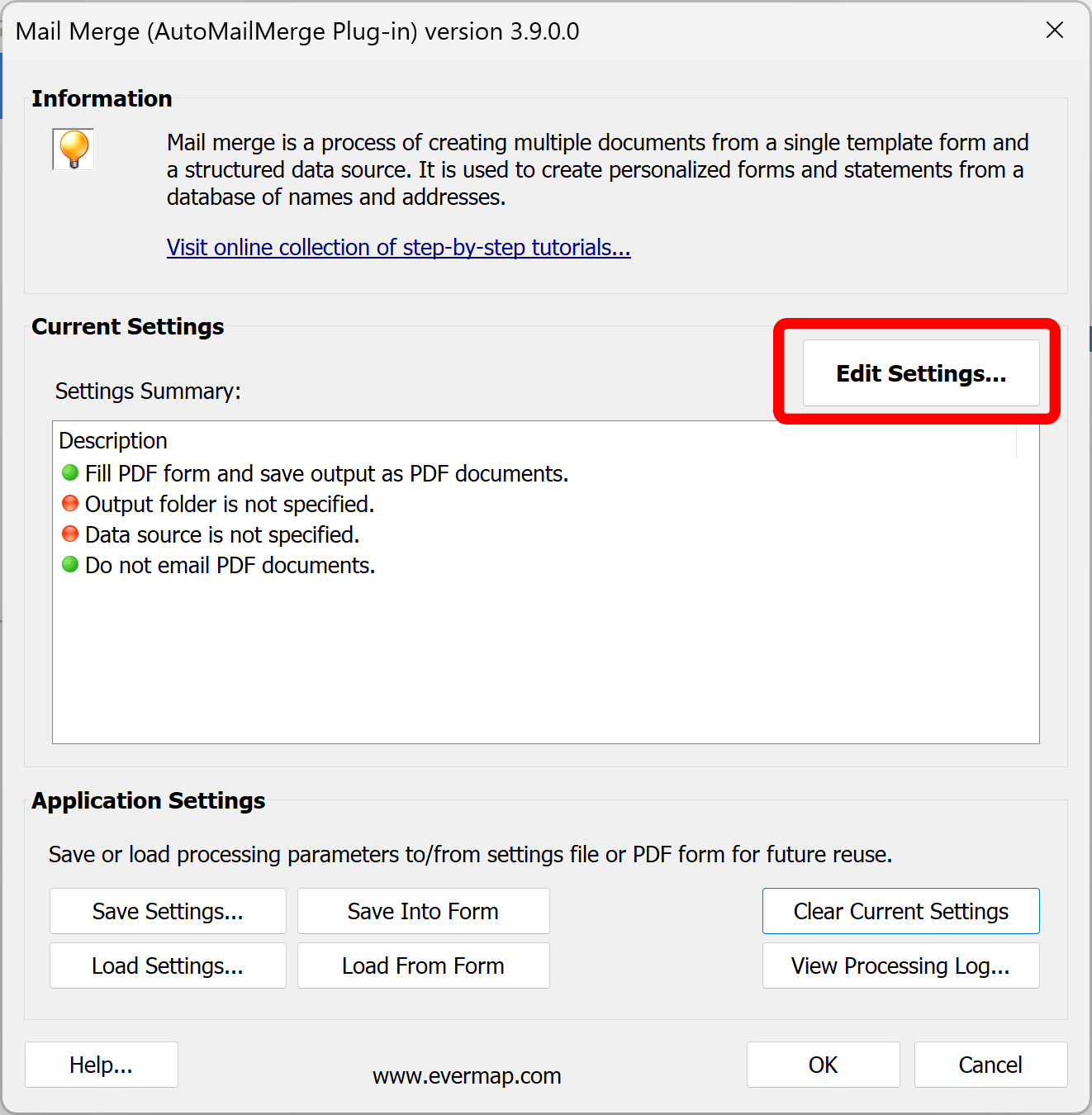
Press Edit Settings... button:
Select Data File
Make sure input data file is not open in Excel or any other application. Next, Press Browse... button:
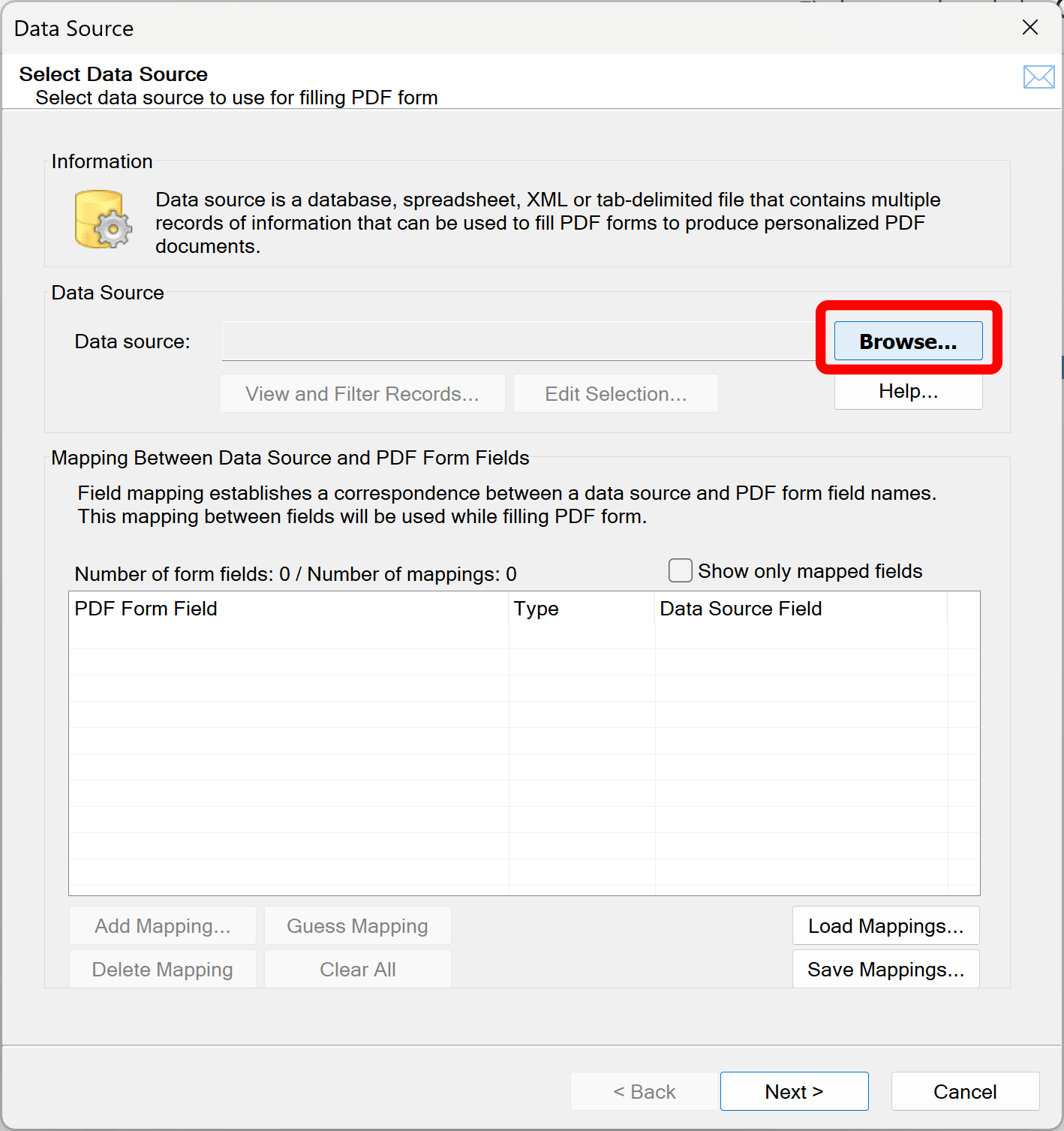
Select data source type. In our example, we are going to use Excel *.xlsx file.
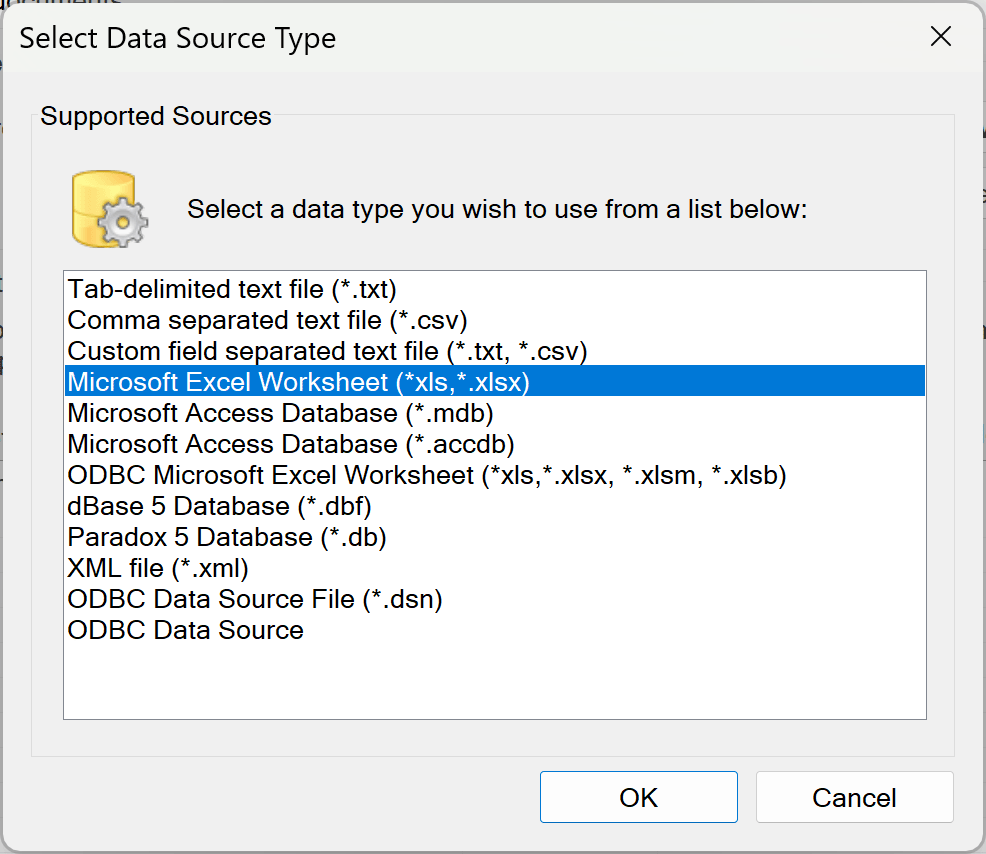
Select Excel file in the "Open file" dailog (not shown here).
Next, select worksheet you are going to use:
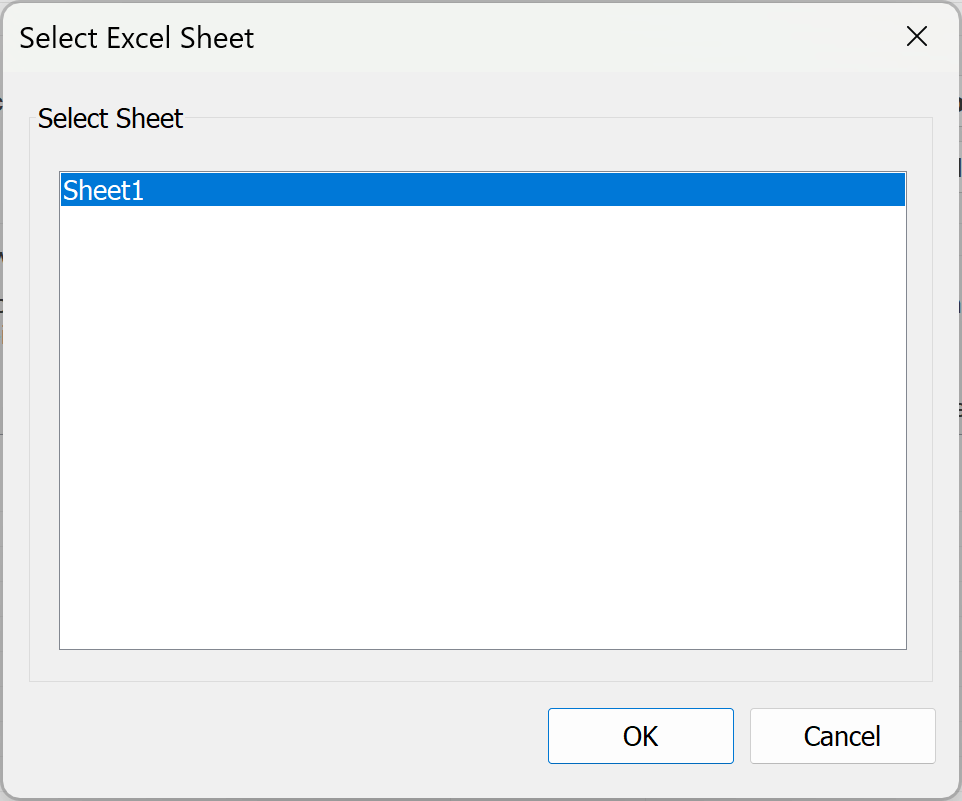
Automatic Field Mapping
Now you should see PDF form fields listed in the dialog. Since we have 3 fields in PDF and Excel file with identical names, we can simply press Guess Mapping... button to automatically map these fields based on field name similarity.
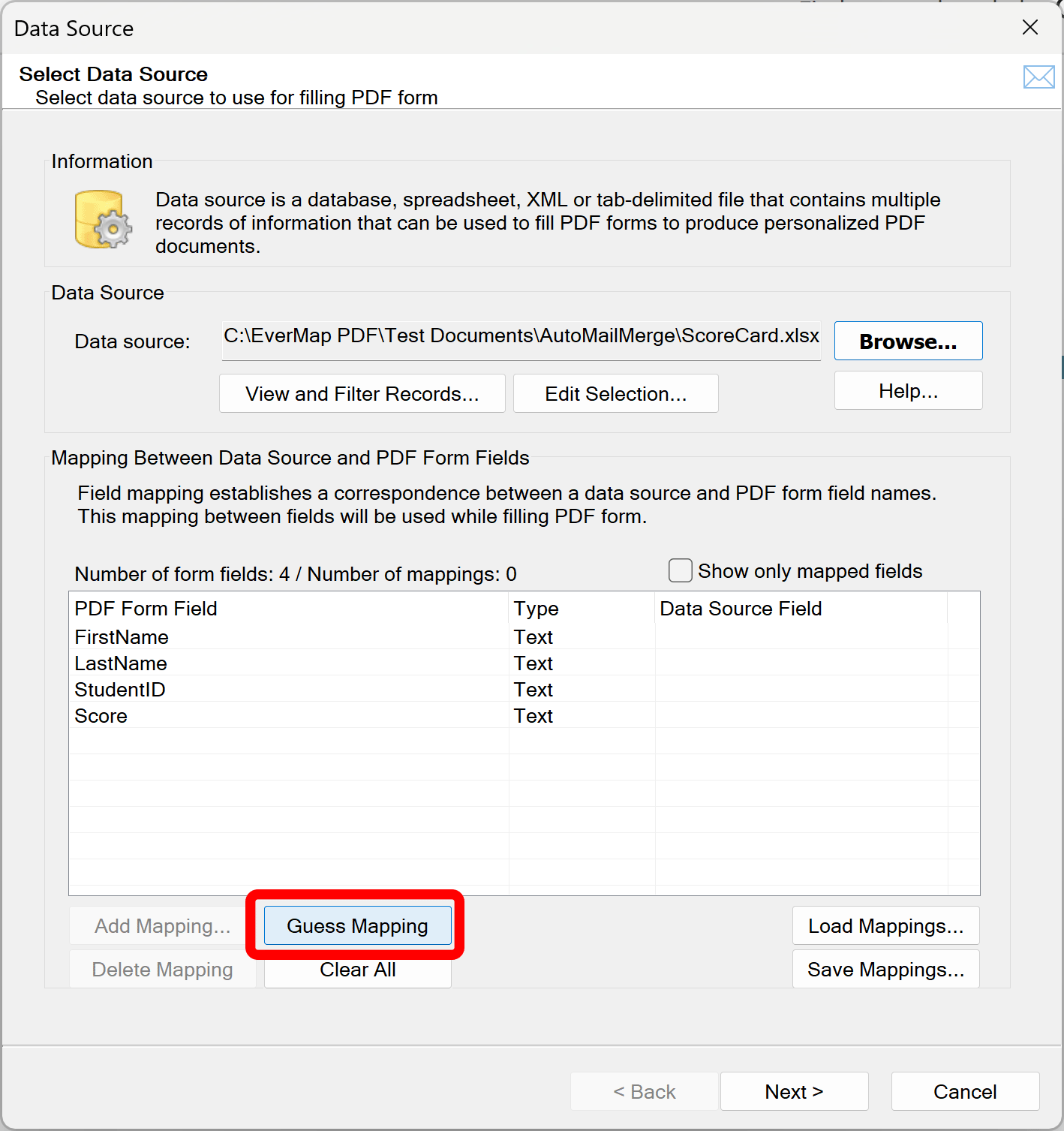
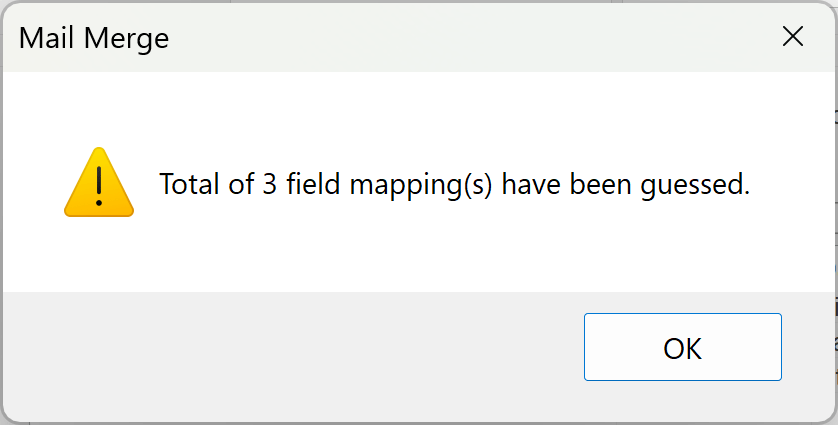
Now you should see 3 fields listed with corresponding data fields.
Manual Field Mapping
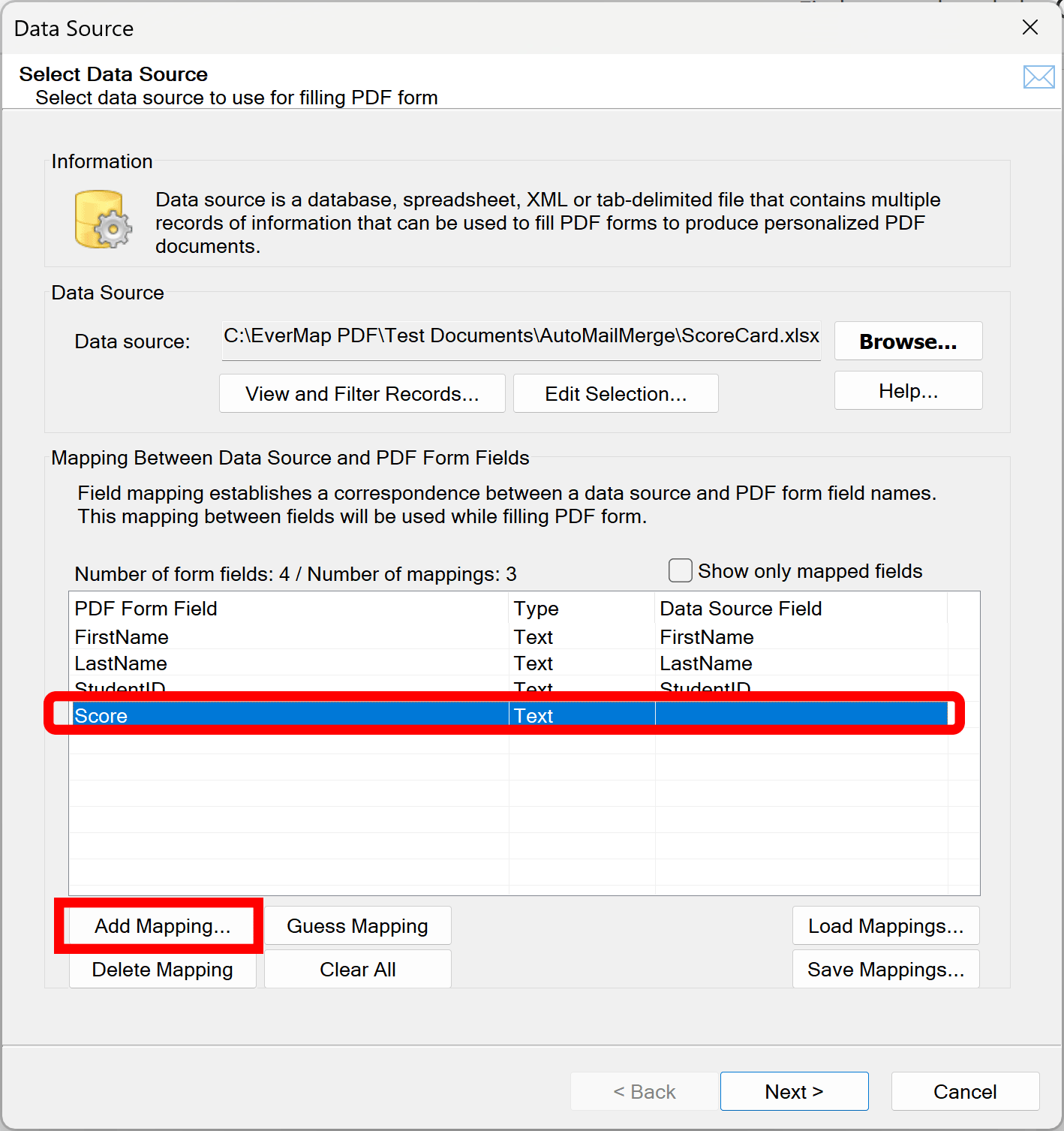
In our example, we have one field that is named differently in Excel file and PDF form. We are going to manually set correspondce for this field.
Select a form field in the list (Score in the example below) and either press Add Mapping... button or just double-click on the form field.
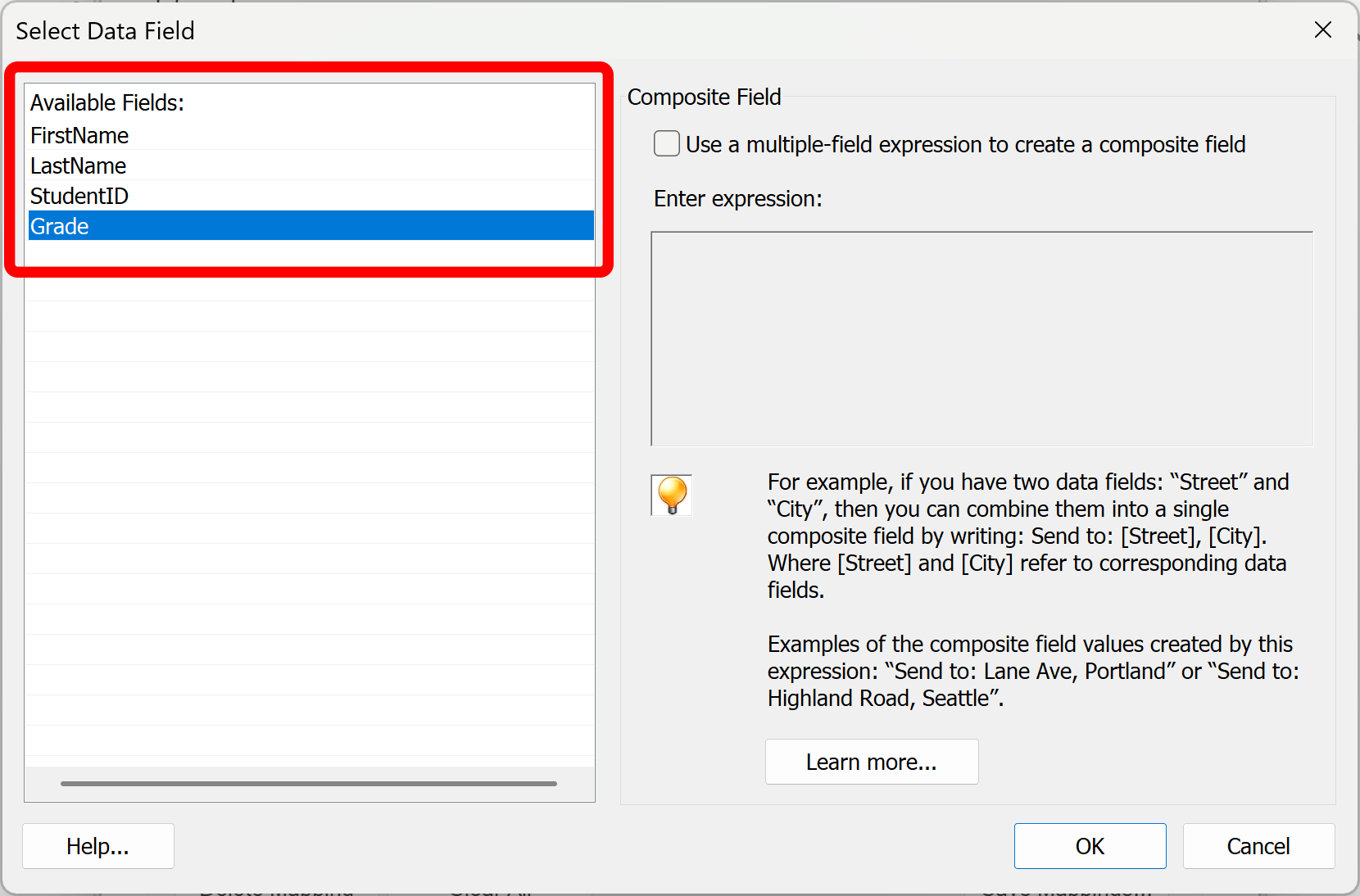
Select a data field from the list of available fields and press OK button. In our example, we selected Grade data field.
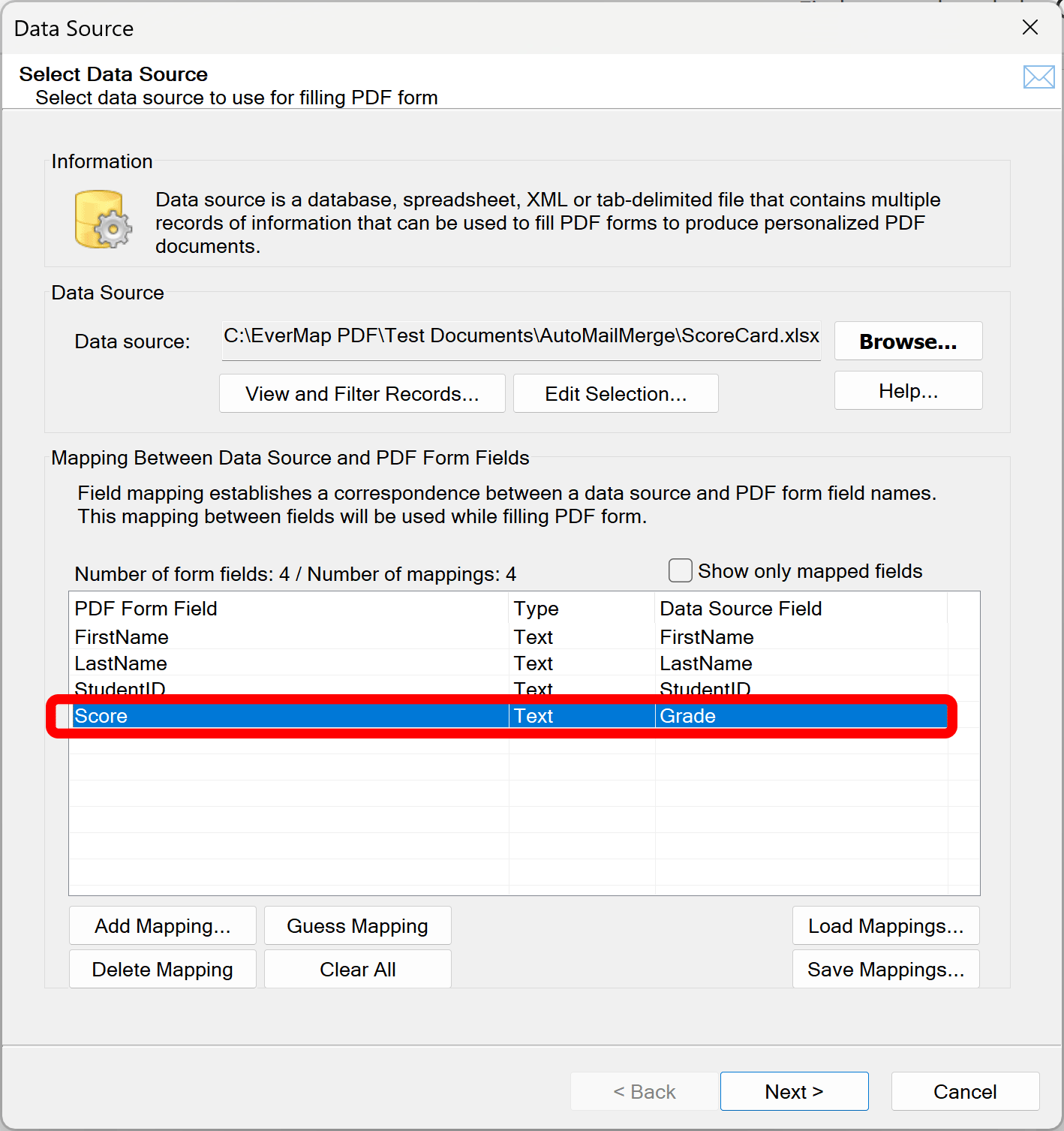
Now all fields are successfully mapped.
This tutorial focuses only on mapping fields. The rest of the mail merge configuration workflow, such as connecting to your data source, setting up output options, and running the merge, is covered in our other tutorials. Read them to learn how to complete the full mail merge setup.