
Troubleshooting Loading Acrobat Plugins
EverMap Plug-ins for Adobe® Acrobat®
Introduction
When an Acrobat plug-in does not appear in the user interface and there is no Plugins menu enabled, the most reliable way to determine what is happening is to observe the actual runtime behavior of the Acrobat process. In many cases, plug-in loading failures are silent: Acrobat does not display errors, warnings, or dialogs when a DLL fails to load, is blocked, or terminates during initialization.
Using Process Monitor
Process Monitor (ProcMon) from Microsoft Sysinternals allows you to see, with precision, whether Acrobat attempts to load a specific plug-in DLL, what file system and registry operations occur, and whether those operations succeed or fail. By filtering ProcMon output to the Acrobat process and the plug-in file of interest, you can definitively answer key questions such as:
- Was the plug-in DLL accessed at application startup?
- Was the load operation successful or rejected (e.g., ACCESS DENIED, NAME NOT FOUND)?
- Is another process (such as anti-virus) locking or interfering with the DLL?
This page describes how to use ProcMon to trace plug-in loading at the operating system level and identify the exact reason a plug-in is not being loaded, independent of Acrobat UI behavior or assumptions about installation correctness.
Downloading ProcMon
Visit Microsoft Sysinternals page to download ProcMon application. It comes as a zip file and does not require installation. Just open the zip file and run ProcMon64.exe or ProcMon.exe.
Running ProcMon
- Run Procmon.exe (or Procmon64.exe).
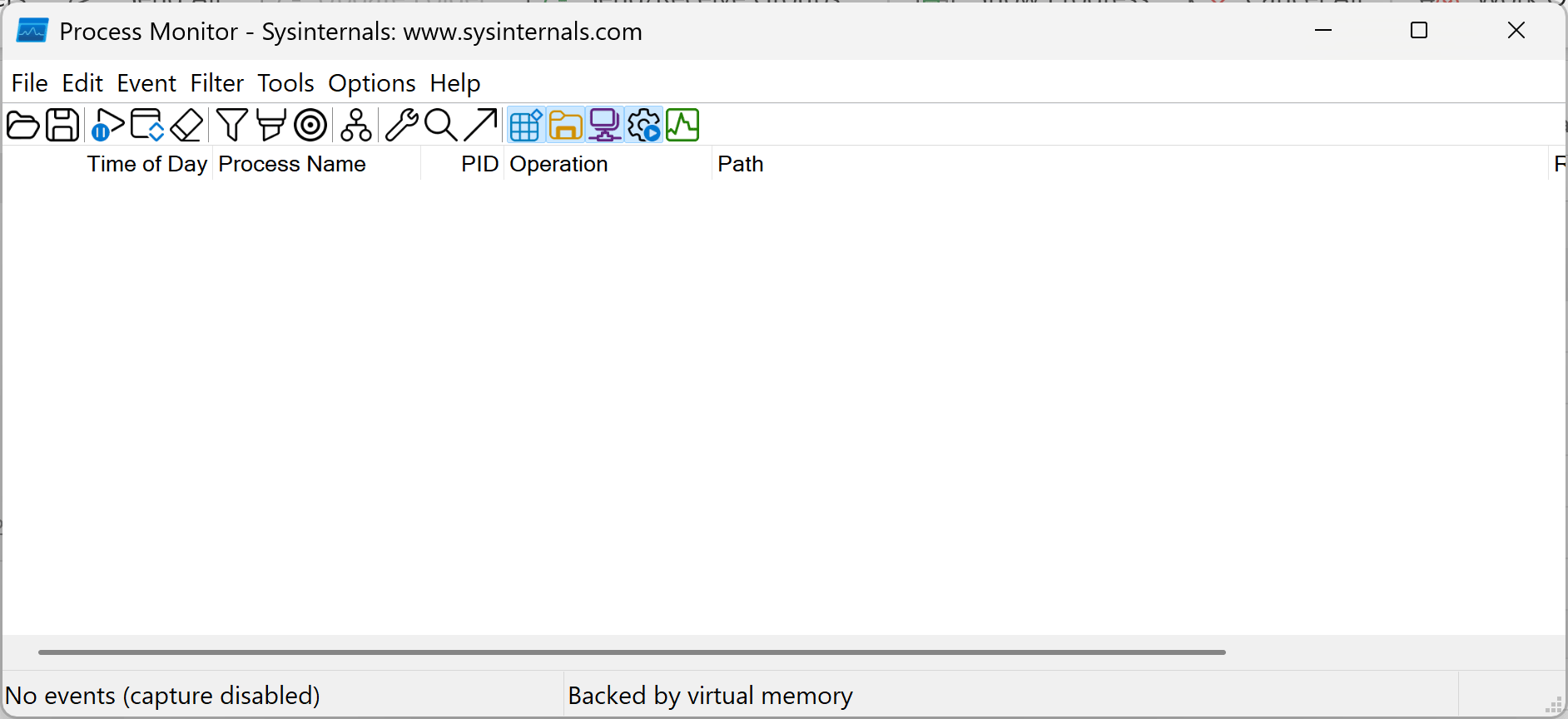
- The moment it opens, it starts capturing everything — millions of events.
- Press Ctrl + E to pause capture.
- Press Ctrl + X to clear the current log.
You now have a clean slate.
Adding a Filter
You can either add filter manually using the procedure outlined below or you can import pre-configured filters for selected plugins. Filters are downloaded as small *.pmc files used by ProcMon application to import/export configuration settings. PMC files are safe to download and should not trigger any security issues.
- Download AutoSplit Configuration File
- Download AutoBookmark Configuration File
- Download AutoMailMerge Configuration File
Importing Downloaded Configuration
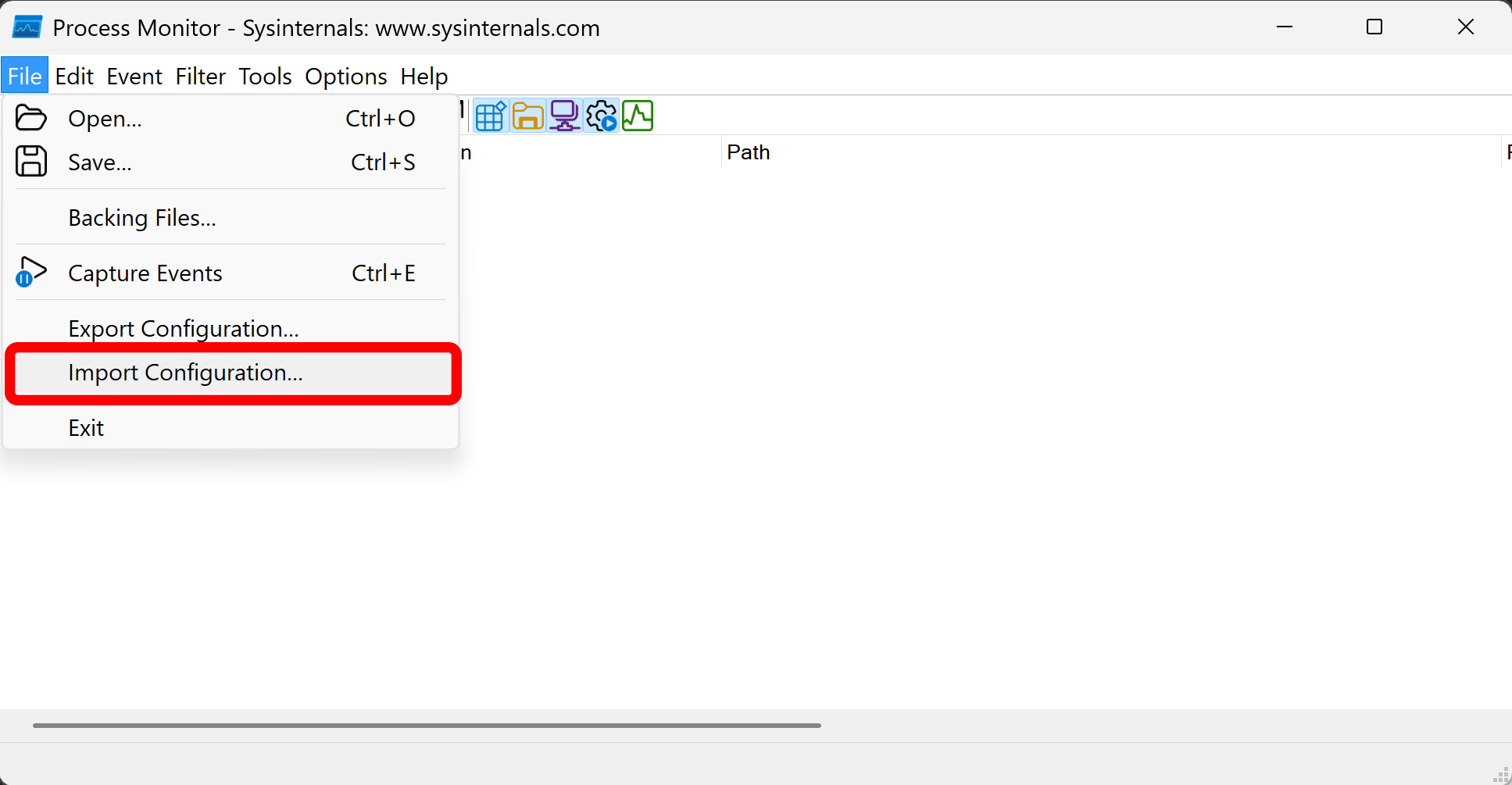
Select File > Import Configuration... from the ProcMon menu if you want to import pre-cofigured monitoring configuration from the downloaded configuration *.pmc file.
Manually Add Filter by DLL Name
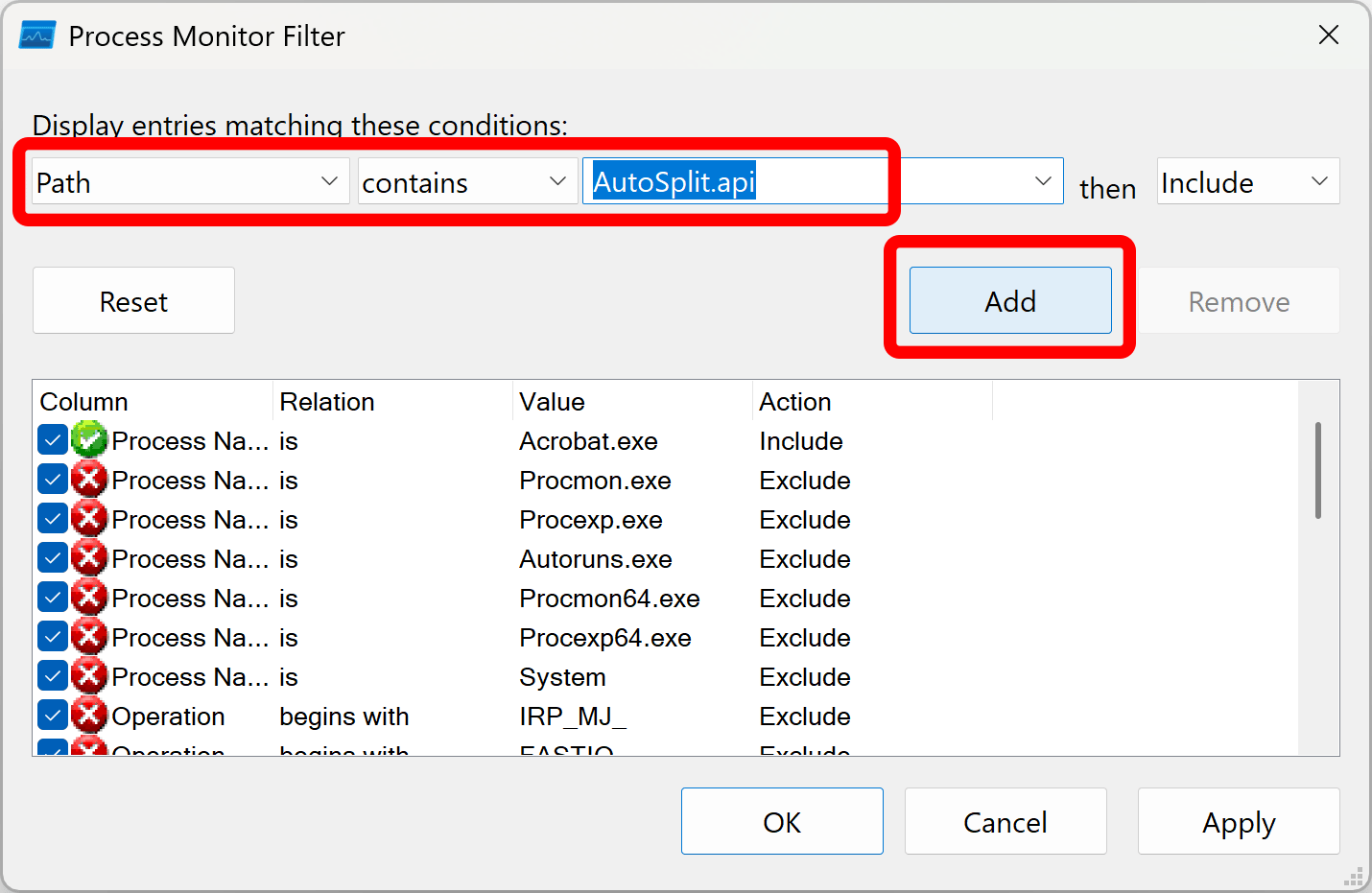
If you are adding filter manually, then select Filter > Filter... from the menu or press Ctrl + L on keyboard.
Select Path contains AutoSplit.api then Include from the menus and then press Add button. If you are debugging a different plugin, then replace "AutoSplit" with actual plug-in name (for example, AutoBookmark.api or AutoMailMerge.api).
Start Recording
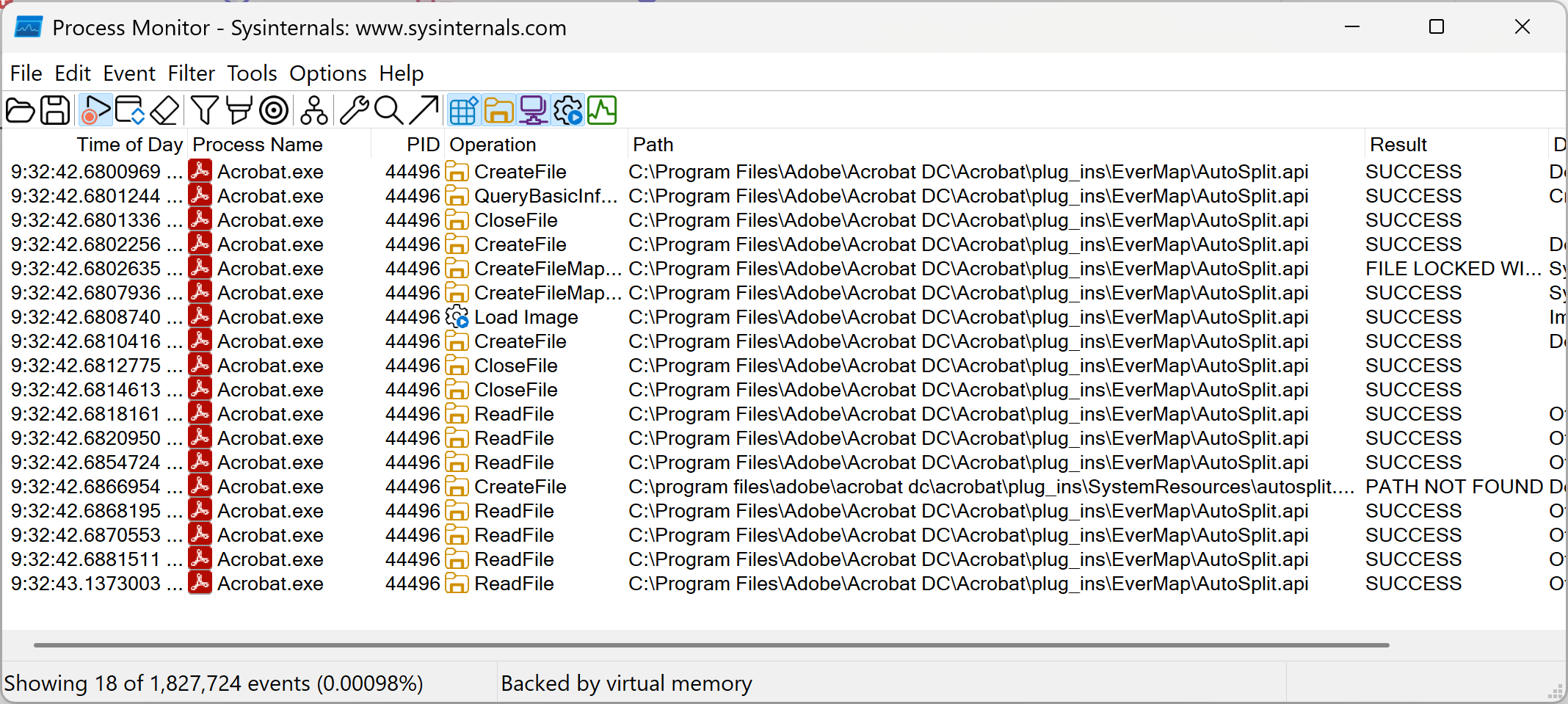
Start recording events by pressing Ctrl + E on keyboard. Next, start Adobe Acrobat and see the events showing up in ProcMon window.
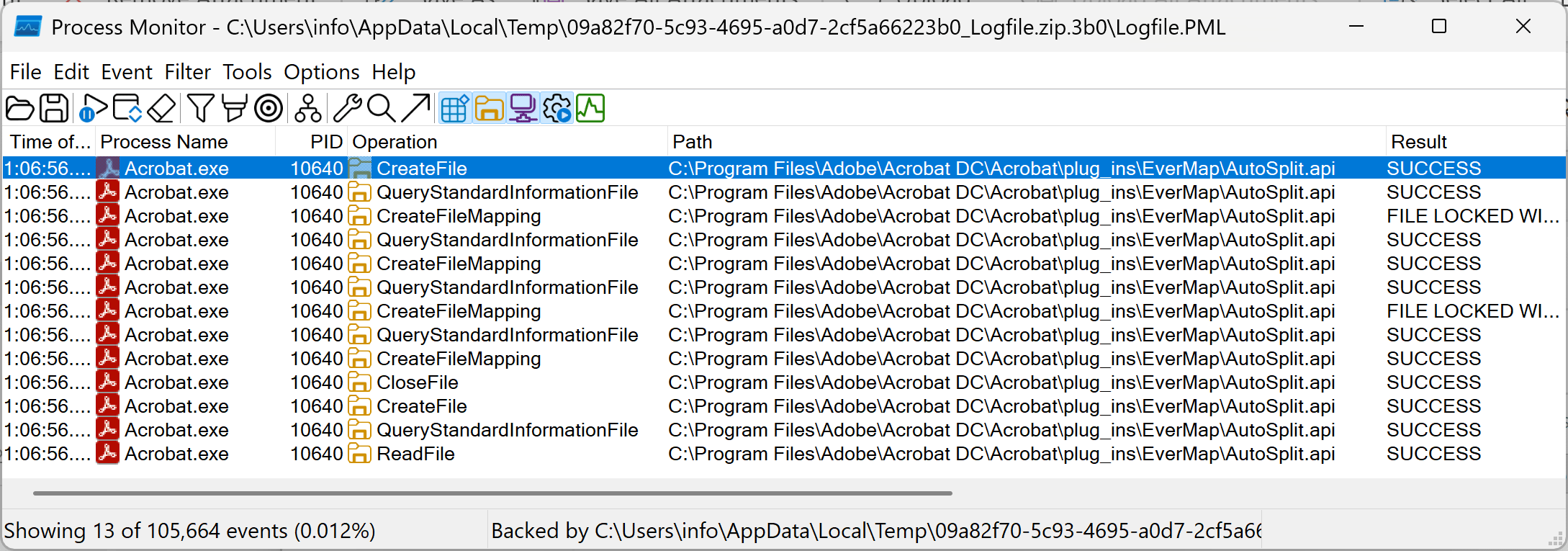
The screenshot below shows sample output that would normally appear when the AutoSplit plug‑in (AutoSplit.api) is successfully loaded. Note that report contains Load Image event.
Save Events
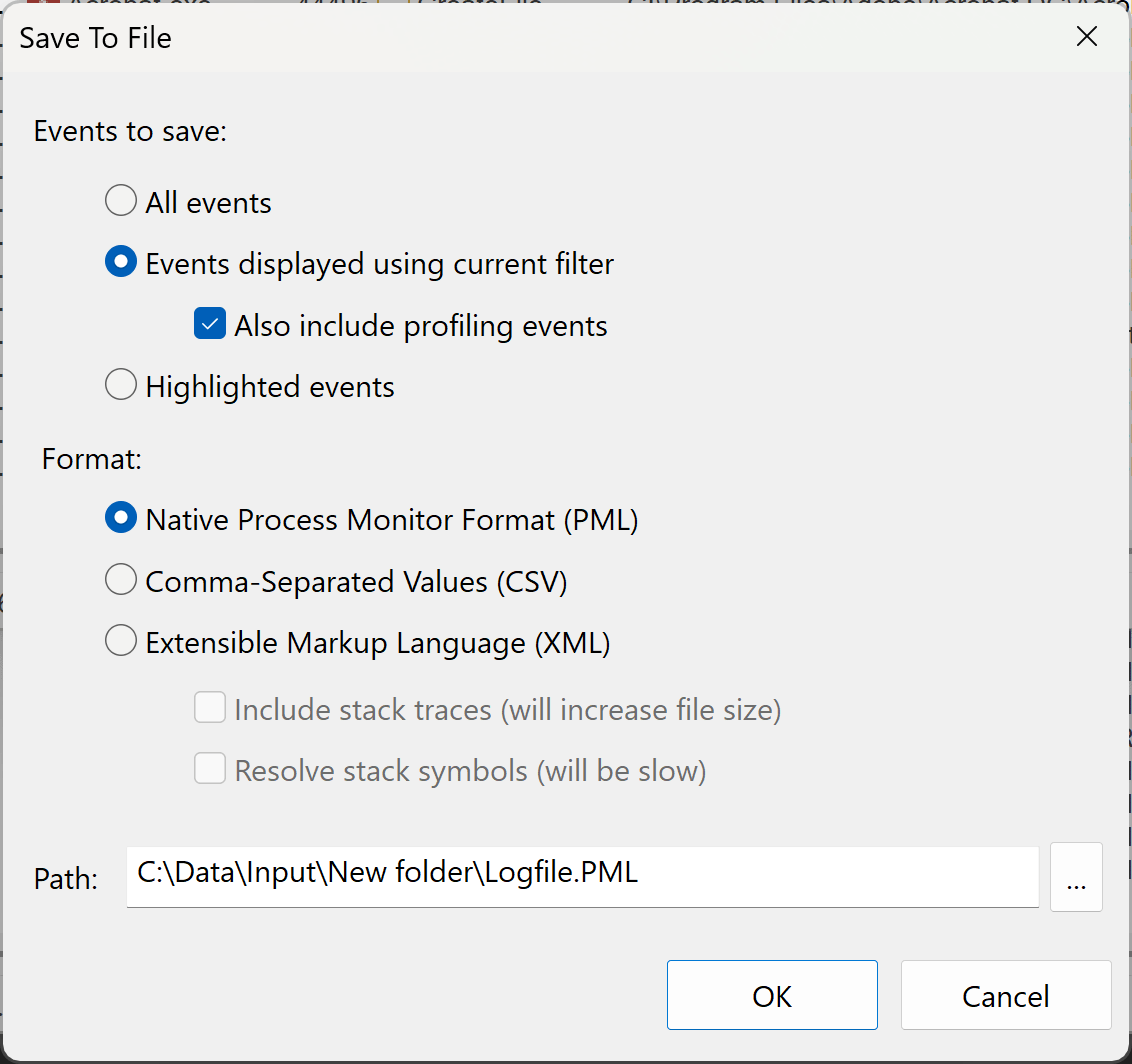
You can optionally save the events and email it to the tech support by selecting File > Save... from the ProcMon menu.
Sample Output: Plug-in Not Loaded
The following screenshot shows sample output generated when the AutoSplit plug‑in (AutoSplit.api) is not loaded. In this case, the issue was caused by using an incorrectly licensed copy of Adobe Acrobat—the user was not logged in with a valid account. The report does not contain any Load Image event, indicating that the plug‑in was not loaded into Adobe Acrobat.