Convert PDF Portfolios into Single PDF
Extract & Convert Emails & Attachments
Prepare Emails for Litigation
De-duplicate PDF Files
Extract PDF File Properties as Spreadsheet
Stamp Pages with Filenames and Metadata Fields
AutoPortfolio™ is a plug-in for Adobe® Acrobat® built for litigation
support and e-discovery workflows. It converts emails and their attachments
into review-ready PDFs — the kind of task paralegals and litigation support
staff handle every day when preparing document productions.
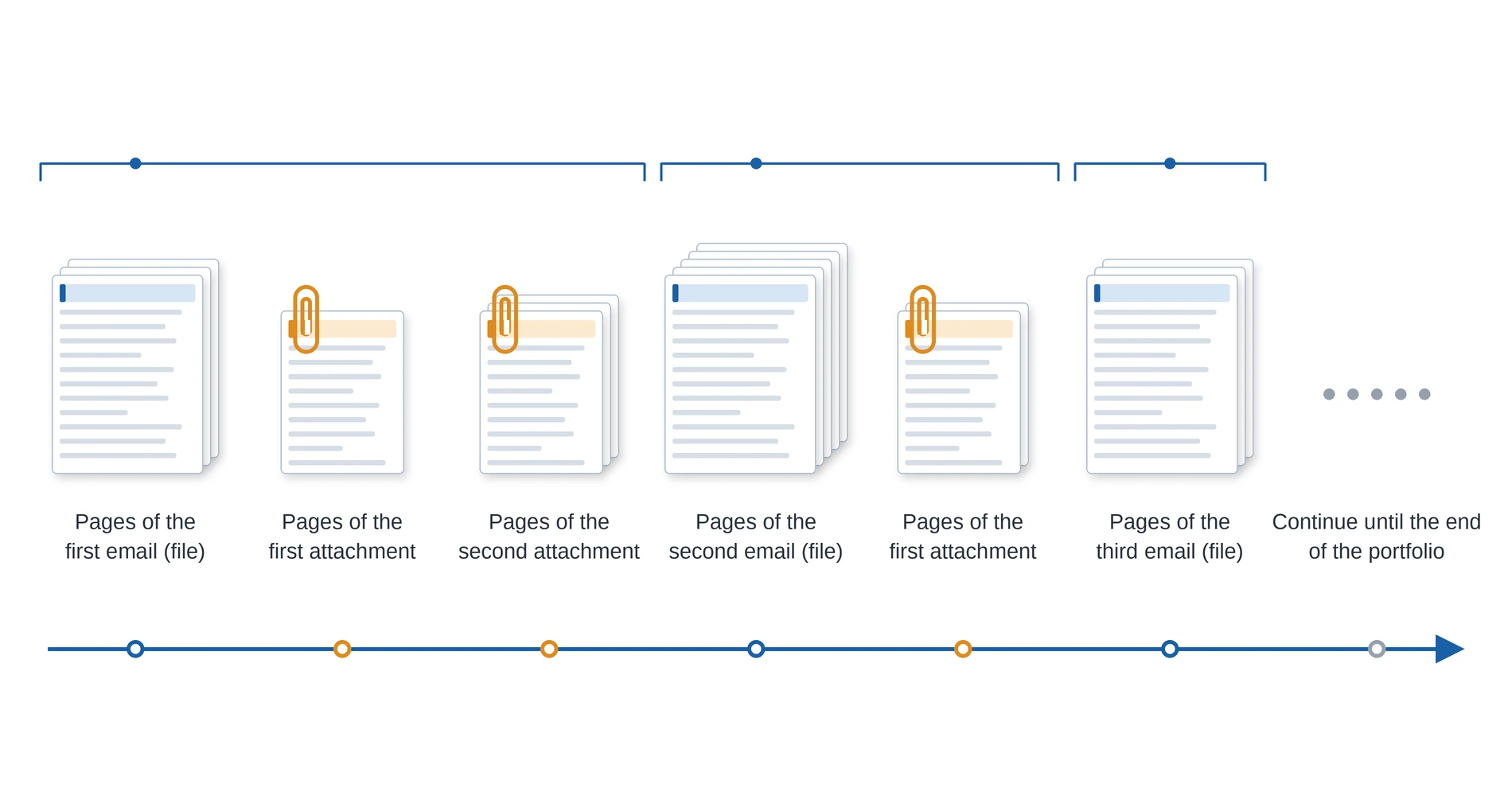
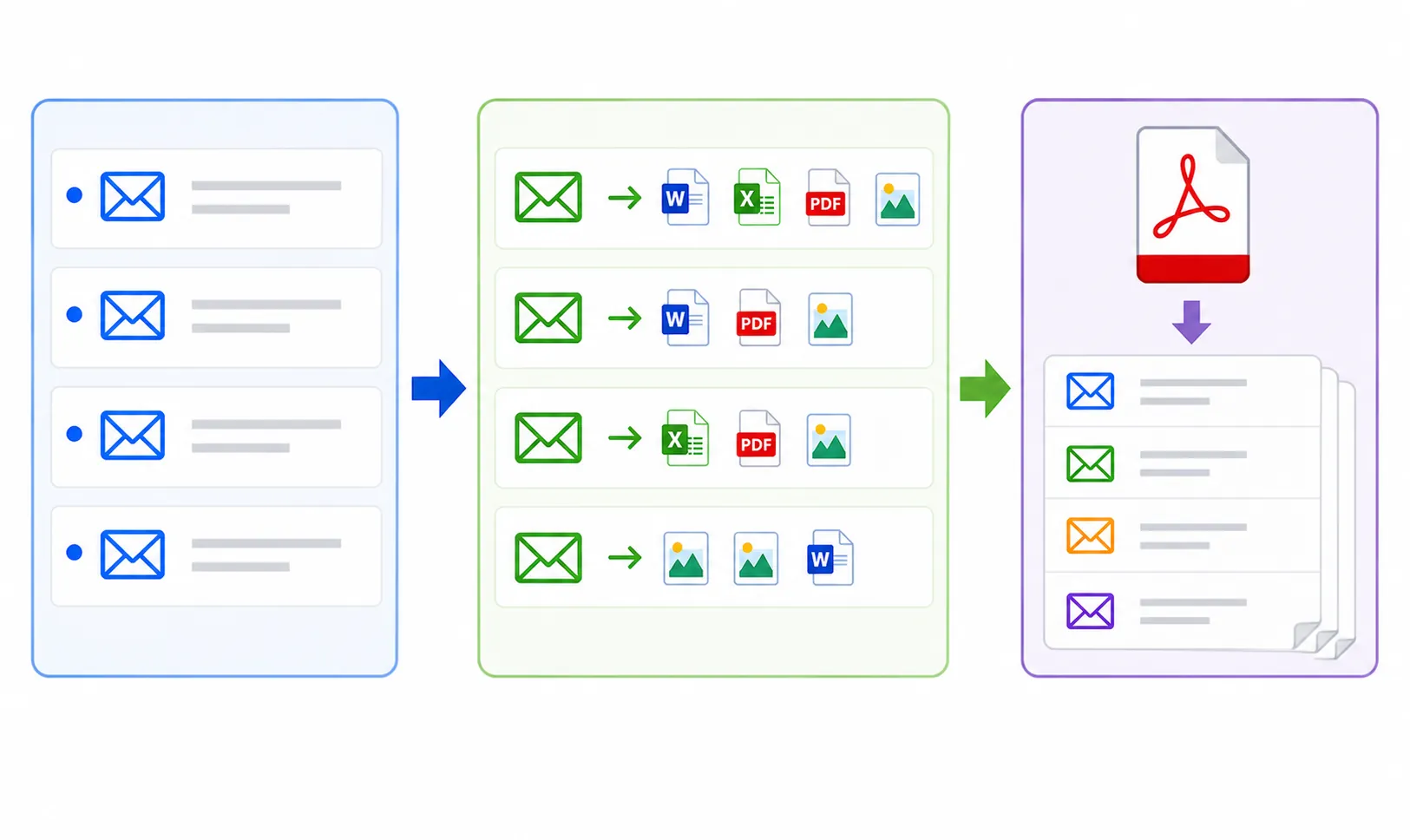
Each email is converted into a single PDF, with every attachment converted
to PDF and appended directly behind its parent email — so the full email
"family" stays together, just as it would in a document production. You can
choose to output each email and its attachments as its own individual PDF,
or combine an entire batch of emails into one large PDF for review. Instead
of manually opening, converting, and reassembling hundreds of emails and
attachments by hand, AutoPortfolio handles the heavy lifting automatically.
The software works directly with PDF Portfolios — the format commonly used
to export and archive email collections from Microsoft Outlook, Gmail,
Office 365, and other email platforms — making it a natural fit for
processing email evidence and client correspondence ahead of review or
production.
Email Conversion
The plug-in provides powerful functionality for managing emails stored in PDF portfolios:
Converting portfolios into regular PDF files
Extracting email file attachments and converting them into PDF format
Exporting email metadata into Excel and HTML formats
Converting portfolios for use in litigation support systems
De-duplication of PDF file collections
Converting EML files into PDF portfolio format
Check large PDF portfolios for corrupted PDF files
You have an email folder (in Outlook or any other email application) that was exported into a PDF Portfolio. Now you want to convert it into a single regular PDF with all attachments appended after corresponding emails for storing, printing or searching.
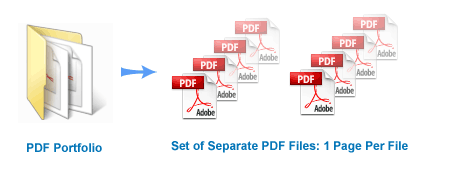
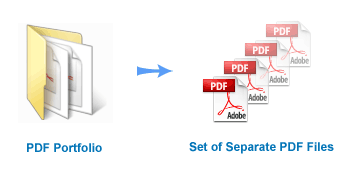
You have a PDF Portfolio, and want to extract all files and attachments into separate PDF files - whilst converting non-PDF attachments into PDF format, and appending them to the corresponding parent email/document.
You have a set of PDF documents that you want to prepare for importing into a litigation support system (Concordance / Summation).
You want to export metadata for a PDF Portfolio into a spreadsheet-ready file.
You have a set of PDF files that you want to de-duplicate by removing documents with text contained in other documents.
Exporting Bates numbers from a selected set of PDF files (not Portfolios) into a spreadsheet-ready file.
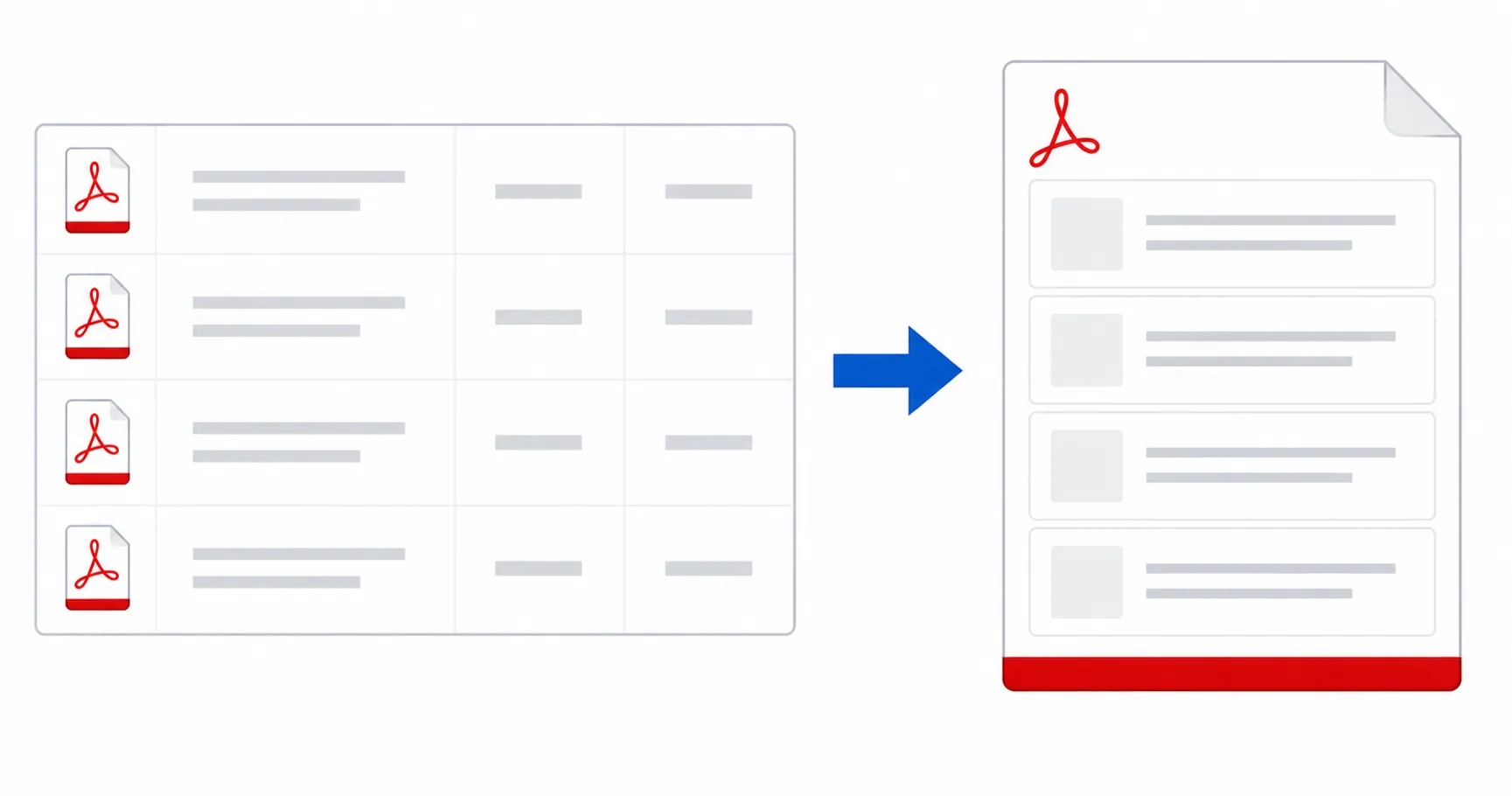
The plug-in provides the ability to convert the content of one or more PDF Portfolios
into a single "flat" PDF document. All embedded files and corresponding file attachments
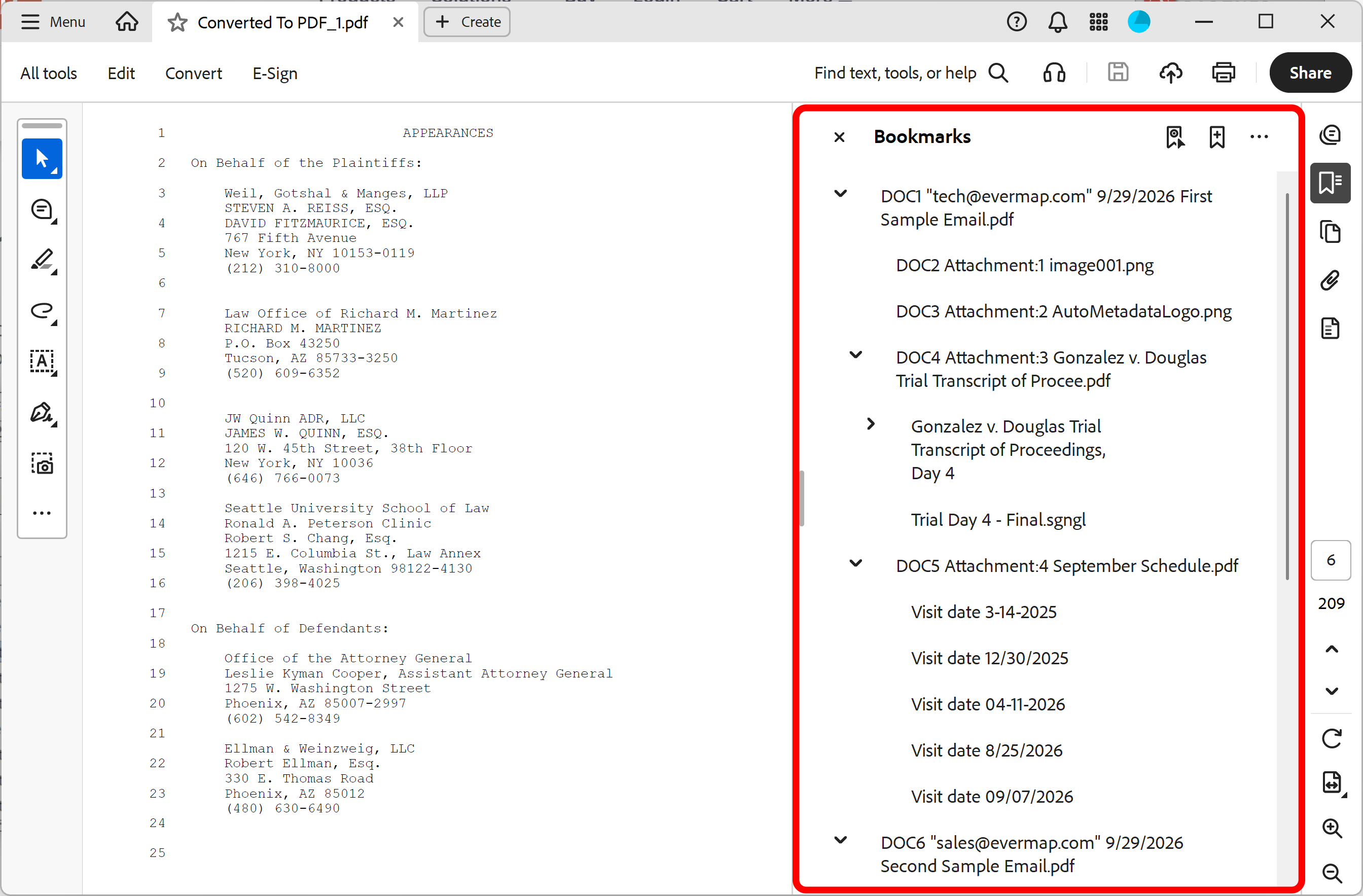
are merged together to create a regular PDF file. The beginning of each file is bookmarked
(with additional child bookmarks pointing to file attachments). Non-PDF file attachments
are optionally converted into PDF format. Attachments are merged at the end of the
parent document.
The plug-in allows the merging of regular PDF documents with page-level
file attachments. File attachments are optionally converted into PDF format and appended
to the end of their parent document.
This operation is useful when it's necessary to apply Bates stamping to emails
with non-PDF attachments. First, a portfolio with emails is converted into a single
PDF document with attachments converted to PDF and appended to the end of the parent
email. It is straight forward to stamp a single PDF document in Adobe Acrobat.
The plug-in bookmarks the first page of each portfolio item (email) and each attachment to allow easy navigation. Each
top-level item is bookmarked using text from a corresponding "Description" metadata
field.
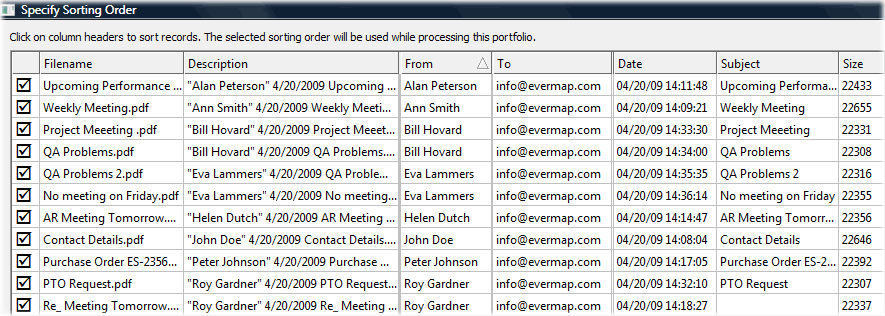
The software provides sorting and filtering
capabilities (see screenshot below) based on the embedded files' metadata. For example, embedded files from
a PDF Portfolio that contains emails can be sorted based on the date received (or any
other metadata field such as "From", "To", or "Subject" etc.) and then merged into
a single output file, producing a regular PDF with all emails organized in chronological
order.
The plug-in provides an option for creating either a single output document (or a set of files, depending on the operation) for one or more input PDF portfolios, or to create
a separate output for each input portfolio (all output files are placed into automatically
created sub-folders). The second option provides a powerful ability to batch process a large number of input PDF portfolios (email archives for example) into separate output documents. Each email archive is converted into a separate PDF file and placed into a separate folder.
The plug-in uses existing file conversion filters installed in your copy of Adobe Acrobat to convert non-PDF files into a PDF format.
If Adobe Acrobat can create a PDF file from a certain file format, then the plug-in will be able to convert it as well.
Some file formats require the presence of corresponding software products on the same computer.
For example, you need Microsoft Office Word installed on your computer in order to convert Microsoft Word documents (*.doc) into PDF format.
The plug-in also provides a simple interface for selecting portfolio items based on a
date range. This is a very useful operation for processing large email archives. Use this method to process/extract/convert
all emails received between two dates.
Selecting Portfolio Items By Search and Record Numbers ↑top
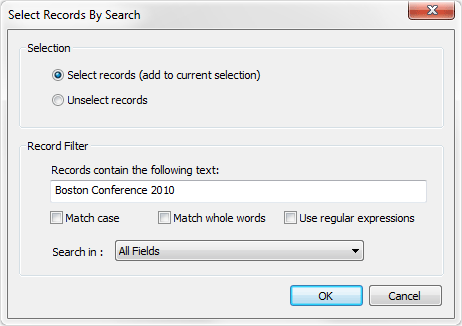
The plug-in provides a powerful "select by search" method for selecting
only those documents from a PDF Portfolio that contain a specific text or pattern.
Use this feature to process only files that have a certain word(s) in a specific metadata field(s). For example, select only emails from "John Adams" or with "QA Problems"
in a subject line. Another useful selection method is by record numbers. This is useful when it's necessary to process a large portfolio in
smaller increments .
The plug-in optionally extracts ZIP file attachments and converts all contained files into PDF.
This capability makes handling ZIP file attachments completely transparent.
The plug-in extracts the content of MSG file attachments and converts them into PDF format on an individual basis (similar to the processing of ZIP archives).
The MSG format is used by the Microsoft Outlook email program to save email messages as separate files.
The AutoPortfolio plug-in provides the ability to execute custom Acrobat JavaScript code on every PDF document contained in the input portfolio.
Acrobat JavaScript is a scripting language of Adobe Acrobat that is based on widely-used JavaScript language.
Acrobat JavaScript code can be optionally run on:
All top-level entries in a PDF portfolio
All attachments that are in PDF format
All attachments that are converted into PDF format
The custom scripts can be used to perform a variety of tasks on PDF documents:
Adding custom text ("watermarks") to the document
Placing stamps and annotations
Adding cover pages by inserting pages from external PDF files
Performing document processing based on metadata fields
Use this software to extract all embedded files (including file attachments) from
one or more PDF Portfolios. Non-PDF file attachments are optionally converted into
PDF format. The plug-in automatically creates a Casemap load file (a text file that
lists all extracted files) based on the user-defined sorting order. Sorting and
filtering capabilities allow the export of all or only a few selected files based on any
existing metadata field.
The plug-in can process regular PDF files with embedded
files as well as PDF Portfolios (or PDF Packages). The HTML (with hyperlinks to
extracted files) and CSV report files are generated automatically and include the
following metadata: file name, description, size in bytes, creation and modification
date/time, and MD5 checksum.
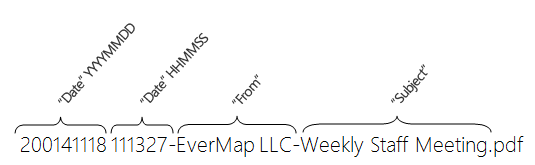
Use metadata information to rename files and attachments. Combine static text and metadata values to create informative file names. Here is an example of using "Date", "From" and "Subject" fields to create a custom file name suitable for easy sorting in Windows Explorer:
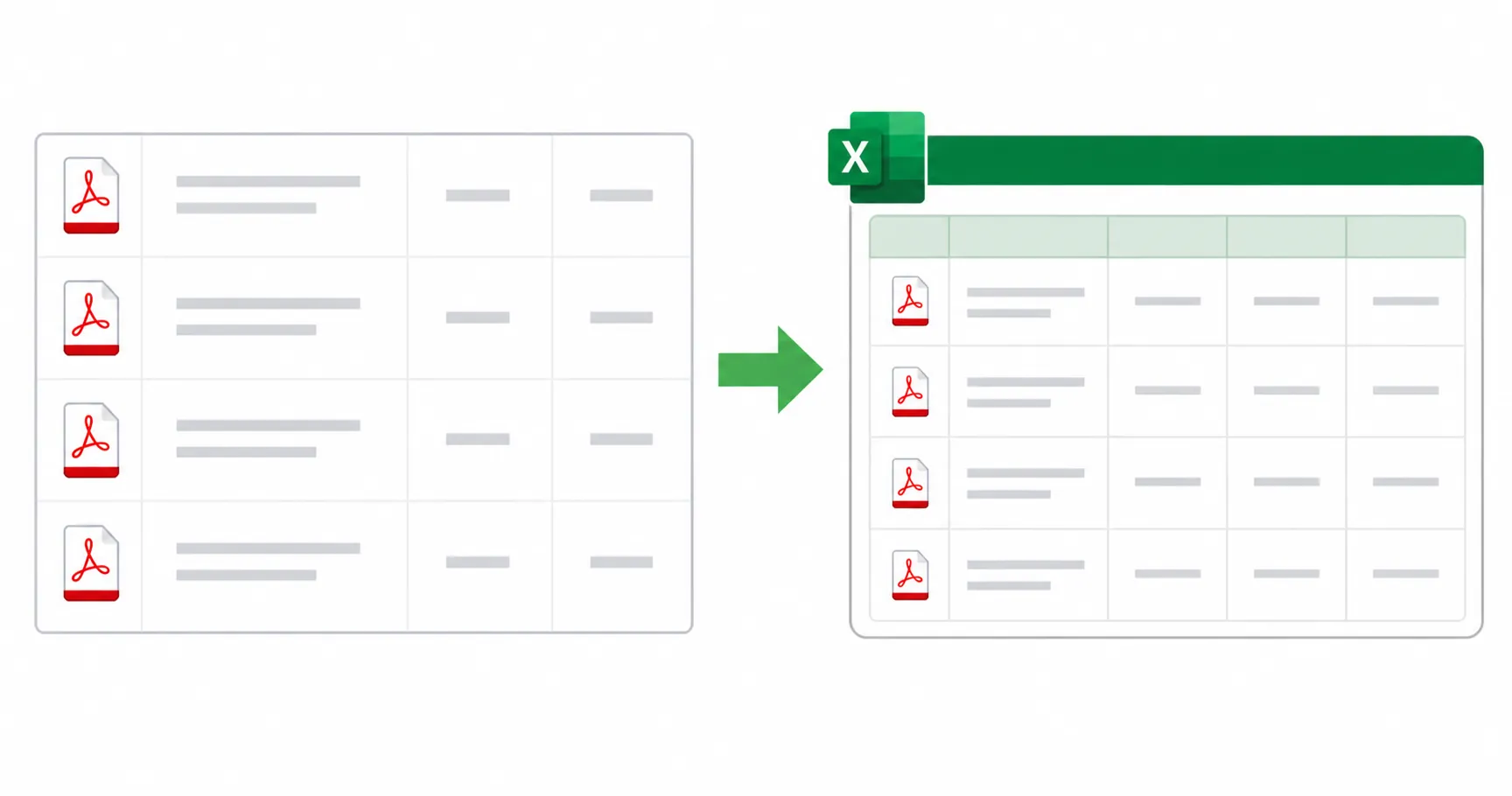
The plug-in allows exporting of document metadata for many files at once without
extracting files. The software supports two formats that can be easily
imported into any spreadsheet application: text (CSV) and MS Excel XML files. Metadata
includes any standard or custom fields such as file name, description, size in bytes,
MD5 checksum, creation and modification date/time. If a PDF portfolio was created
by Microsoft Outlook ("Convert To Adobe PDF" menu) email application, then each
file might have the following metadata fields (specific to email): "Subject", "From",
"To", "Cc", "Attachments", "Folder", "Received", "Importance", and "Sensitivity" etc.
Convert PDF Portfolios For Litigation Support Systems
Export to Litigation Support Systems (Concordance and Summation)
↑top
Convert one or more PDF Portfolios for loading into litigation support systems such
as Concordance, Summation, or Relativity. This operation outputs a set of TIFF, Text and PDF
files, one output file for each PDF page. All interactive form elements such as
buttons, fields, as well as annotations will be automatically flattened before converting
to output text, image and PDF files. The plug-in creates separate Summation (*.DII), Opticon (*.LOG) and Casemap load files.
Use this function to find and delete duplicate pages from a PDF document.
The plug-in provides two different methods for identifying duplicate or near-duplicate pages:
Comparing visual appearance of the pages as “images”.
Comparing page text regardless of its visual appearance.
The first method provides a fast way for detecting pages that look exactly the same or have very small differences.
Use it to find pages that are visually identical.
This method does not compare any invisible text that may be present on the page.
It will not detect any difference between a scanned page with and without OCR applied ("Recognize Text" operation). Similarly, it is not able to detect a white text on a white background.
The second method uses a different approach. It compares page content as text strings with options to ignore case and punctuation.
If two pages contain the same sequence of words, then they are considered the same, regardless of the visual appearance
and text location on the page. It is possible to use this method to find pages with similar, but not identical content
by specifying a maximum allowed difference between two pages (in characters). Note that this method totally ignores any
images or graphics that might appear on the page as well as text appearance properties such as font style, size and color.
The plug-in provides the functionality for checking a set of PDF files for duplicate
and near-duplicate files. The software uses a combination of advanced
methods to compare PDF documents and detect files that contain text from other documents.
For example, a typical email thread may contain 20 different email replies - the last email containing all previous emails, making the rest
of the documents redundant and able to be discarded. Detecting and discarding documents
that are redundant allows the user to greatly reduce the number of documents/emails
that need to be read during the electronic discovery process.
Record sorting capability allows the user to select a customised order for the embedded files while converting from Portfolio into PDF and other file formats.
The plug-in also allow you to select only a subset of the embedded files based on either a manual selection or a search query.
The plug-in automatically skips duplicate attachments that are present within a single PDF document.
This feature is handy when processing PDF Portfolios created by Adobe PDF Maker from Lotus Notes email.
Every email attachment in such portfolios appears to be included twice: once in the header of the email and once in the body.
Skipping such files speeds up processing and removes unnecessary duplicates in the output.
The plug-in automatically generates processing reports in HTML and spreadsheet-ready CSV file formats. The processing report contains detailed information about each input
portfolio, lists processed portfolio sub-documents and attachments, and provides file
statistics and MD5 checksums.
Converting EML files into PDF Portfolio
What is EML file format?
It is the standard format used by Microsoft Outlook Express as well as some other email programs.
Since EML files are created to comply with industry standard RFC 5322, EML files often
encountered while working with emails from different sources.
Emails from Gmail can be downloaded and saved into EML file format.
Conversion into PDF Portfolio Format
The Adobe Acrobat cannot convert EML messages into a PDF file format directly.
The AutoPortfolio plug-in provides a function to convert
one or more EML files into a single PDF
Portfolio file. Each EML message is converted into a separate PDF document that is added to the output portfolio.
All email attachments are transferred as file attachments of the corresponding PDF file.
Each PDF document entry in the output portfolio is stored with associated metadata.
The metadata fields include "To", "CC", "BCC", "From", "Subject", "Date", "Attachments".
Set Custom Document Properties to Multiple PDF Files
Overview
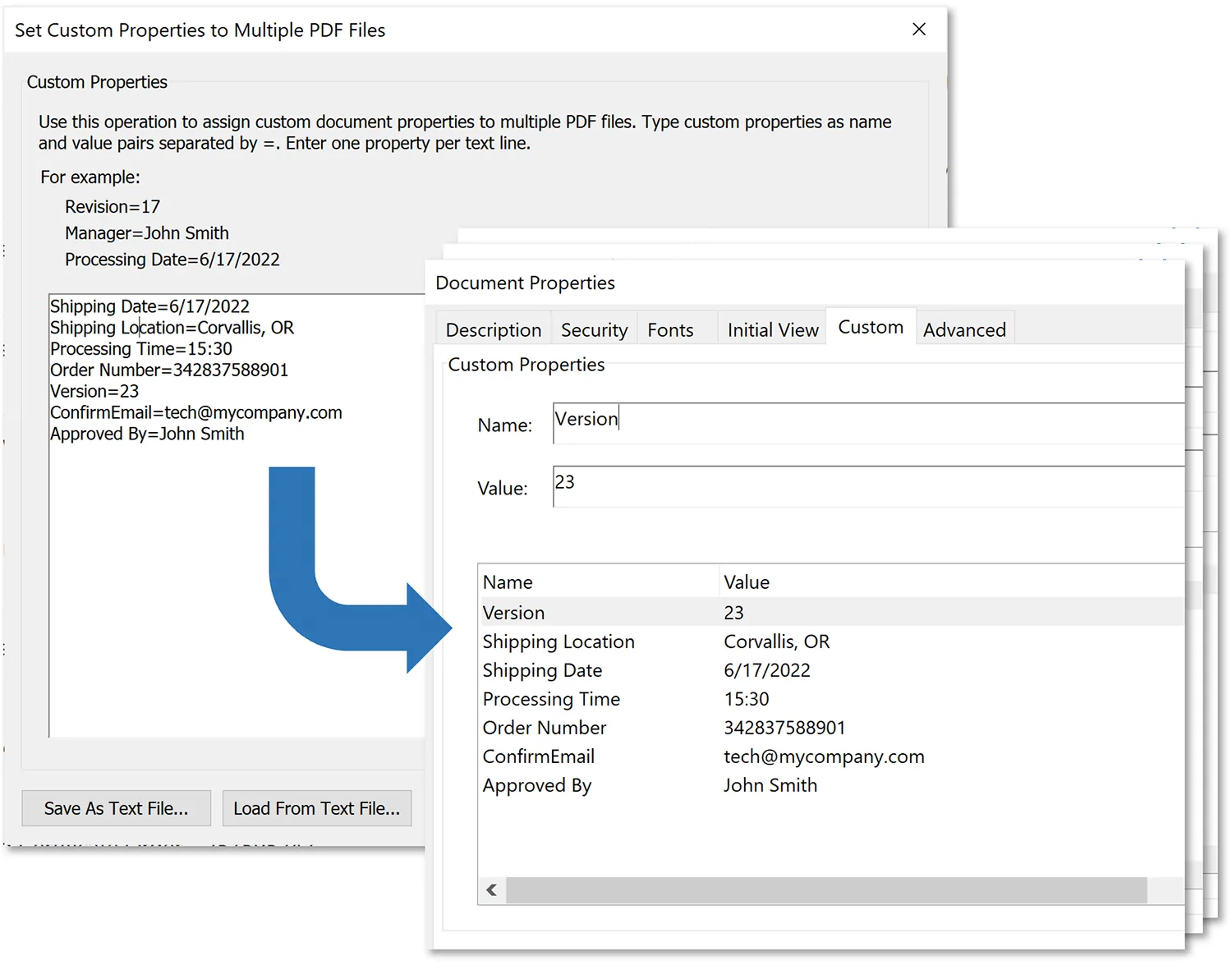
AutoPortfolio provides a way to easily set custom document properties to multiple PDF files at once.
Document properties (aka “document metadata”) is a common way to attach information to PDF files.
Extract File Properties from Multiple PDF Files
Overview
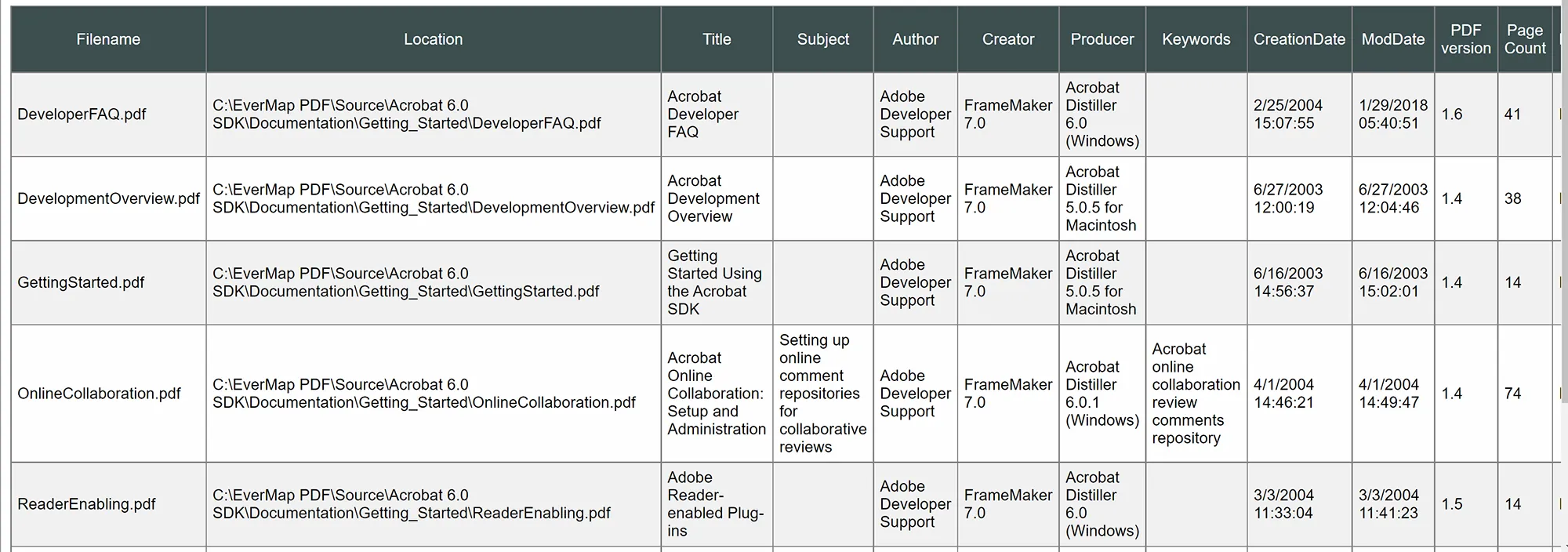
Extract the following file properties for one or more PDF files or all files in one or more folders:
Document filename with extension (for example: MyDocument.pdf)
Full path to the document (for example: c:\Data\Projects\MyDocument.pdf)
“Title” PDF metadata field
“Subject” PDF metadata field
“Author” PDF metadata field
“Creator” PDF metadata field
“Producer” PDF metadata field
“Keywords” PDF metadata field
PDF Version of the file (PDF file format version the document conforms to. For example:
1.6 )
Page count
Portfolio (Yes/No) - If corresponding document is a PDF portfolio, then the value
is Yes, otherwise No.
Number of document-level attachments
Form (Yes/No) - If a corresponding document is a PDF form, then the value is Yes,
otherwise No.
XFA Form (Yes/No) - If corresponding document is a XFA form, then the value is
Yes, otherwise No.
Number of interactive fields (if a document is a PDF form, 0 otherwise)
File size (in bytes)
"Modified" date
"Created" date
Page size (for the first page of the document)
Page rotation (for the first page of the document) - possible values: 0 degrees,
90 degrees, 180 degrees, 270 degrees.
List of security restrictions. For example: "No document editing", "No printing",
"No page inserting", "No bookmark editing" and etc.
Output File Formats
CSV (comma-delimited) text file (*.csv) - most widely used spreadsheet format.
Tab-delimited text file (*.txt)
Microsoft Excel XML Spreadsheet (*.xml)
JSON Data File (*.json)
HTML report (*.htm) - HTML report that can be viewed in any browser
Here is a sample of the file properties report in HTML format:
Stamp Pages with Filename and Metadata Fields
Overview
Use this operation to stamp pages in one or
more PDF documents with corresponding filenames and/or metadata fields such as:
File Name
File counter (000001, 000002, 000003.. – sequential number of the file):
Author
Title
Subject
Keywords
Creation Date
Modification Date
Creator
Producer
Any Custom Metadata Field
Any Custom Text
Text can be placed relatively to 5 reference positions on the page: upper left corner, upper right corner,
bottom left corner, bottom right corner, and center of the page.
Sample Output
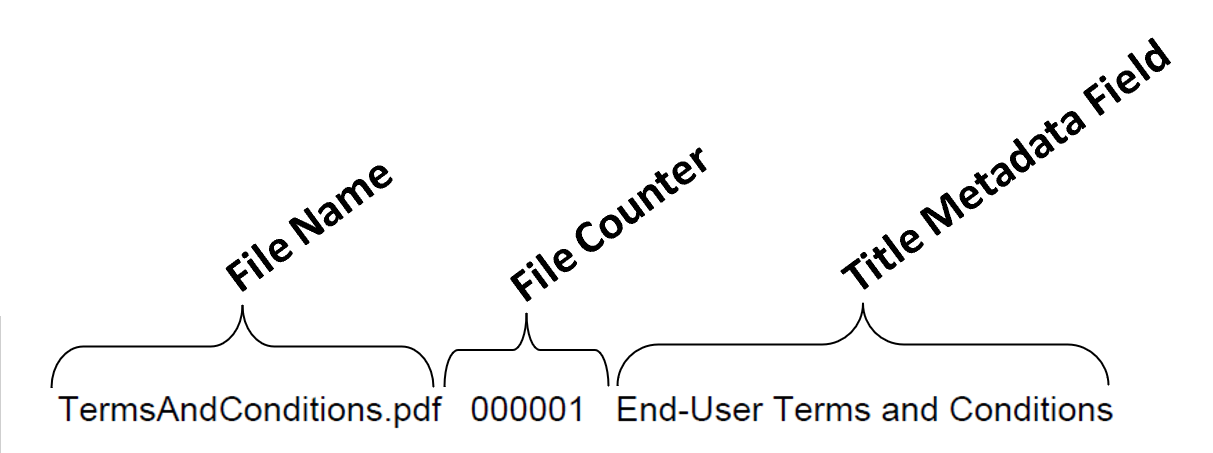
Here is an example of the watermark added to the lower-bottom corner of the page. Watermark consists of 3 fields:
filename, file counter and Title metadata field. The content, style and location of watermark can be fully customized by the user.
Bates numbering (also called Bates stamping) is used in the legal industry as a method to label and identify legal documents,
for easy identification and retrieval. A Bates number is a specially formatted, auto-incrementing number (and can be a combination of letters and digits) that is added to every page of the document to uniquely reference it.
Nearly all American law firms use Bates numbering during the discovery phase of litigation,
to reference and identify documents.
Adding Custom Bates Numbers via a Control File ↑top
Bates numbers can be added to a set of PDF files individually for each input PDF document via the use of a plain-text control file.
Each input PDF document can be numbered using a different set of parameters.
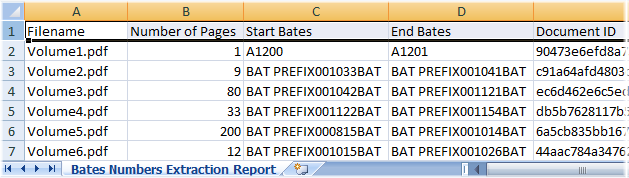
The plug-in provides the functionality for extracting Bates numbers from a selected group of PDF documents (not PDF Portfolios) into a spreadsheet-ready
CSV file. The output CSV file can be opened and edited by any spreadsheet application. The following information
is extracted for every input PDF document: file name, number of pages, Bates number for a first page, Bates number for a last page, & Document ID.
The software extracts Bates numbers that have been previously added to PDF documents using Acrobat's "Bates Numbering" operation.
Customer Testimonials
«
It's $199 that is worth its weight in pdf's! I have been using AutoPortfolio plug-in for the past few days and it performs exactly as promised.
The attachments are automatically bookmarked behind their parent emails.
Bates numbering has been a cinch considering the volume I am working with. For those who use Summation/Concordance,
it can format your output to meet your litigation software requirement.
I am putting mine in a document library database and this has eliminated some unpleasants step.
»
Rhonda Frank
Contract Project Manager/Paralegal
QD Consultation Group, USA
"I have been a customer of EverMap for several years and have found that their products deliver a
high degree of quality for a nominal price. In addition, they have one of the best technical support
teams in the industry. I have always received highly satisfactory responses in a very short time. I highly recommend this company."
Michael Fero
Assistant to the Treasurer University of Washington
"I must say, this is the best customer support I have ever experienced. It is far beyond what you can expect. It is quick and very helpful.
The software saves me a lot of time for routine work."
Full version of Adobe® Acrobat® software is required (32/64-bit versions 9, X, XI, 2017-2026, DC).
This software will not work with free Adobe Acrobat® Reader®. Batch processing functionality requires
presence of Adobe® Acrobat Professional®.
(Adobe Acrobat Product Comparison Chart).
The Software does not collect, store, nor transmit any user data outside of the user’s computer.
All processing is performed locally on the user’s computer.
There is no cloud processing or servers involved.
The Software can be used in completely disconnected environment with zero network connectivity.
There is not any communication back to EverMap servers for any purpose.
No AI Data Collection Statement
Our software does not use artificial intelligence (AI) for analyzing
user data. Additionally, user data is never used to train AI models or contribute
to any machine learning systems. Your data remains strictly private and protected.